
When you're only dealing with a handful of small spreadsheets, a quick copy-paste job to merge them might seem harmless enough. But as soon as you start working with larger datasets or repetitive reports, that manual process grinds to a halt. For any serious data consolidation, you need a better way—something like Excel's Power Query or a purpose-built tool is non-negotiable for speed and accuracy.
The Real Cost of Manually Merging Excel Files
That "quick task" of merging a few Excel files has a nasty habit of turning into a full-blown productivity nightmare.
Picture a finance team at the end of the quarter. They need to consolidate sales reports from 15 different regional managers, and each one has sent in their own unique spreadsheet. What should be a straightforward data roundup quickly descends into a chaotic mess of copy-paste errors, columns that don't line up, and the all-too-familiar "Excel is not responding" warning.
This isn't some rare, unfortunate event. It's a daily struggle for data analysts, operations managers, and pretty much anyone who wrangles data in spreadsheets. The manual approach isn't just slow; it's incredibly prone to breaking. A single column pasted in the wrong spot or a tiny data entry mistake can throw off an entire report, forcing you to spend hours hunting down the error. And as your master file balloons with each pasted sheet, Excel slows to a crawl, leading to crashes and lost work.
The Hidden Drain on Productivity
The time you lose isn't just about the minutes or hours spent clicking between windows. It's about the mental fatigue from double-checking for inconsistencies and the sinking feeling that you can't fully trust your final numbers. This struggle is a massive efficiency gap in so many organizations. In fact, one Forrester Research survey found that 78% of spreadsheet users are routinely bogged down by the chore of merging files.
And it gets worse when you factor in the high risk of human error. Analysts can spend an average of 12 hours per week just manually wrestling with data, which results in significant errors in a staggering 23% of cases. If you want to dive deeper, you can explore some standard methods in Microsoft's official guide on combining data.
Manually merging data is like building a house with glue and tape. It might hold together for a small project, but it will inevitably fall apart under any real pressure.
This guide is all about moving past that frustration. We're going to walk through powerful, practical methods to merge your Excel files accurately and efficiently, no matter how big the job is. From Excel's own powerful features to more advanced automation, you'll learn how to get your time back and finally trust your data again.
Choosing the Right Tool for Your Merging Task
So, you need to merge some Excel files. The first thing to realize is that not all merging tasks are the same. The best approach really depends on the size of your data, how messy it is, and frankly, your own comfort level with different tools. Picking the wrong method can send you down a rabbit hole of frustration, but the right one? It can turn a dreaded chore into a simple, repeatable process.
Think of it as a decision point. Do you stick with a manual copy-paste job that's begging for errors and eats up your time, or do you find a smarter, more efficient workflow?
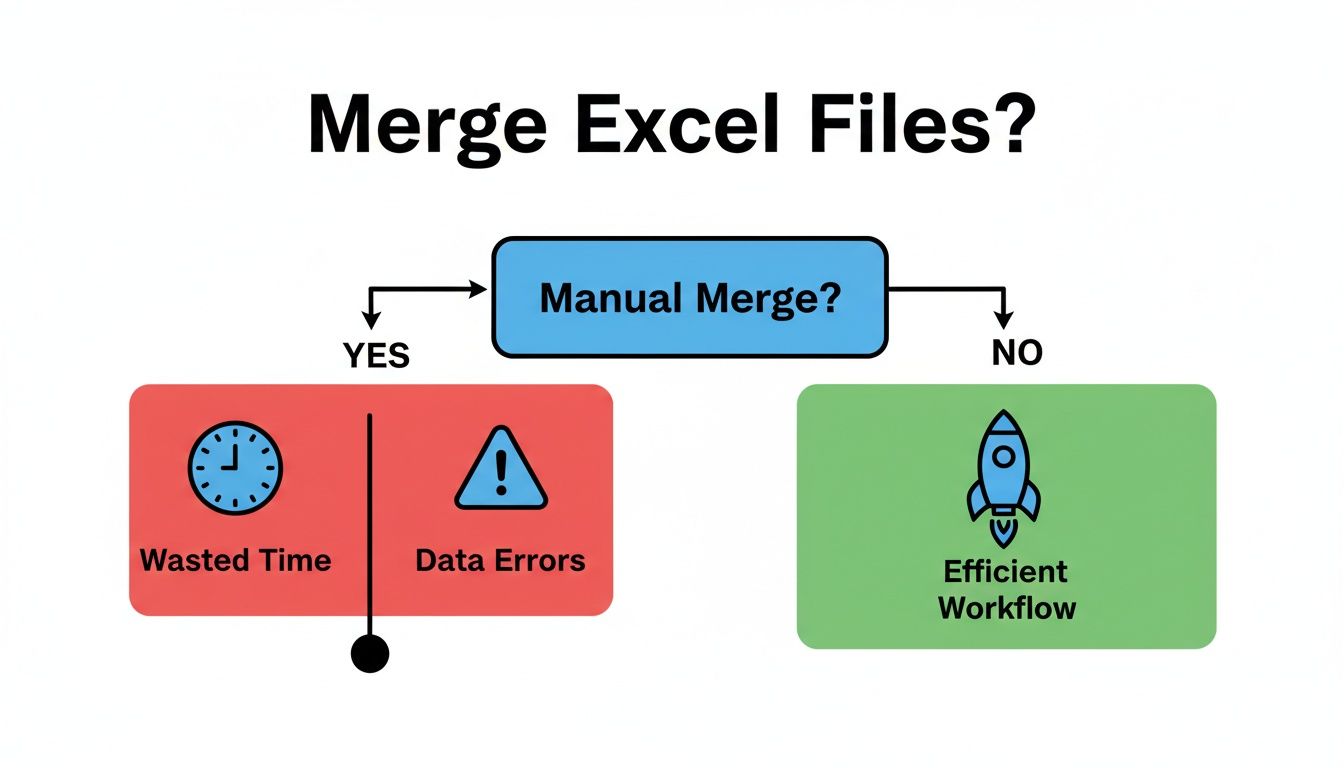
As you can see, for anything you'll do more than once, an automated workflow is the only sane path forward. It saves time and, more importantly, ensures your data is reliable.
Before diving into complex solutions, it's worth understanding the different tools at your disposal. Each has its own sweet spot.
Comparison of Excel File Merging Methods
| Method | Best For | Technical Skill | Data Size Limit | Key Advantage |
|---|---|---|---|---|
| Excel Consolidate | Quick, simple numeric summaries (e.g., summing regional sales). | Low | Small | Extremely fast and easy for basic aggregation. |
| Excel Power Query | Combining many files from a folder; repeatable tasks with data cleaning. | Medium | Medium-Large | Creates a refreshable, automated workflow. |
| VBA Macro | Custom, automated tasks within a strict Excel environment. | High | Medium | Total control and automation inside Excel. |
| Python (pandas) | Massive datasets (millions of rows) or complex merging logic. | High | Very Large | Bypasses Excel's memory limits for ultimate speed. |
| SmoothSheet | Merging large files directly into Google Sheets without browser crashes. | Low | Very Large | Handles huge files and smart column mapping in the cloud. |
This table gives you a quick snapshot, but let's dig into where each one really shines.
When to Use Native Excel Features
Excel’s own tools are often the perfect place to start. You don't need to install anything extra, and you're already working in a familiar environment.
The Consolidate function is your go-to for simple aggregation. Imagine you have sales figures from four different regions, each in its own worksheet but with an identical layout. Consolidate can sum, average, or count this data into a single master sheet in just a few clicks. It's fast, dead simple, and perfect for a quick numerical summary.
But for anything more complex or something you'll need to do regularly, Power Query is the undisputed champ inside Excel. You'll find it under the 'Get & Transform Data' tab. It’s built for situations where you need to combine all the files from a folder, clean up inconsistent data, or even handle slightly mismatched column headers automatically. The real magic of Power Query is that it creates a refreshable workflow. Just drop a new file into your source folder, hit refresh, and your master table updates instantly.
Scripting for Custom Automation and Scale
When you need absolute control or you're dealing with datasets so big they'd make Excel cry, it's time to look at scripting. Yes, this requires some coding know-how, but the payoff in flexibility and performance is huge.
A VBA macro is a fantastic option for automating tasks within Excel itself. You can write a script to loop through all files in a folder, grab the data you need from each one, and paste it into a master workbook. This is a lifesaver for teams that are locked into an Excel-only environment but need a custom, push-button solution for a repetitive merging job.
For the truly massive datasets—we're talking millions of rows—Python with the pandas library is the industry standard. It works completely outside of Excel's memory limitations, making it incredibly fast for combining huge CSV or XLSX files. A simple Python script can read, clean, and merge data far more quickly than any manual method ever could. It's the heavy-duty tool for serious data work.
The right tool transforms your process. Choosing between Consolidate, Power Query, or Python is like picking between a hand-mixer, a stand mixer, and an industrial bakery mixer—each is perfect for a specific scale of work.
Cloud-Based and Specialized Tools
If you live and breathe Google Sheets, you know the unique pain of trying to import a large file only to have your browser freeze up. This is where specialized cloud tools come in. For instance, if you're trying to merge several large CSVs, you’ll quickly find that a dedicated CSV merger for Google Sheets offers a far smoother experience.
These tools are built to do the heavy lifting on their own servers, completely bypassing your browser's memory and processing limits. They're designed to handle common headaches like:
- Importing massive files without triggering those dreaded "Page Unresponsive" errors.
- Smartly mapping columns even when the headers don't perfectly match across files.
- Preserving existing formulas in your Google Sheet and automatically applying them to newly imported rows.
This approach is perfect for operations, finance, or BI teams who rely on Google Workspace. It provides a reliable, high-performance way to get data into your sheets without the usual crashes and manual cleanup.
Using Power Query for Repeatable Data Merges
If you're merging Excel files over and over again, doing it by hand is more than just slow—it's asking for trouble. This is where Power Query, Excel’s built-in data engine, really shines. Forget the nightmare of copy-pasting. Power Query builds a durable, refreshable process that can turn an hour of drudgery into a single click.
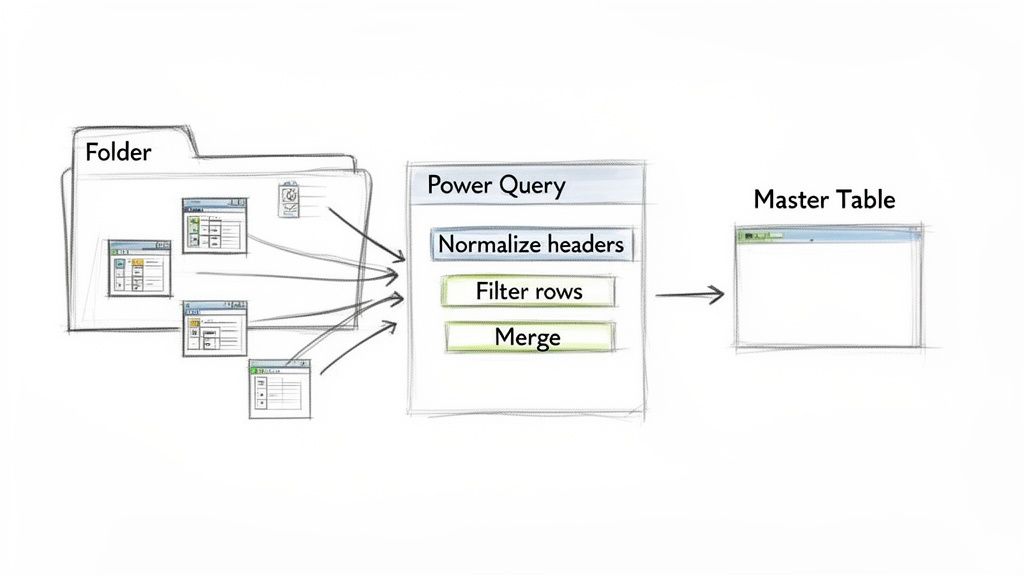
Think of it like setting up an assembly line for your data. You show it how to combine and clean your files once, and it remembers those steps forever. Get a new monthly report? Just drop it in the designated folder and hit "Refresh."
Launching Your First Power Query Merge
Let's walk through a classic scenario: combining monthly sales reports. You have a folder with separate Excel files for January, February, and March. The structure is mostly the same, but you know there are probably little inconsistencies.
To get started, open a blank Excel workbook and go straight to the Data tab. From there, your path is Get Data > From File > From Folder. This simple sequence tells Excel you want to work with an entire folder of files, not just one.
Once you pick your folder, Excel gives you a preview of the files it found. It’s tempting, but don't just click "Combine & Load" yet. The real control comes from clicking "Transform Data," which fires up the Power Query Editor. This is where the magic happens.
Cleaning and Shaping Data Before the Merge
Inside the editor, you'll see your files listed. Find the "Combine Files" button (it usually looks like two little downward arrows on the 'Content' column header). When you click it, Power Query peeks inside the files and picks a sample sheet to use as a template for the merge.
This is your golden opportunity to clean up the data before it gets combined, which saves you from a massive headache later.
- Filter Out Unnecessary Rows: Does every report have a title row or a "Grand Total" at the bottom? Use the filter dropdowns to get rid of them now. This ensures your final table is nothing but clean, consistent data.
- Standardize Column Names: Maybe January’s report has a "Sale Date" column, but February’s calls it "Transaction_Date." Power Query would see these as two separate columns. Fix it by simply renaming one of them in the editor so they line up perfectly.
- Remove Extraneous Columns: If you only care about the customer, product, and sale amount, get rid of everything else. A lean, focused dataset is always easier to work with.
Power Query isn't just mashing your data together. It’s creating a repeatable recipe. Every cleaning step you take—filtering rows, renaming columns, changing data types—gets recorded and will automatically be applied to any new file you add to that folder.
Understanding Join Types for More Complex Merges
Stacking files from a folder is what we call an "append" operation. But Power Query is also a beast at "merge" operations, which work just like SQL joins. This is incredibly useful when you need to combine two different datasets that share a common piece of information, like a Customer ID.
You’ll find the "Merge Queries" option under the Home tab in the Power Query Editor. Clicking this opens a dialog where you can choose your tables and the specific type of join you need.
- Inner Join: This gives you only the rows where the key (like Customer ID) exists in both tables. It's perfect for finding the overlap between two datasets.
- Left Outer Join: You get all the rows from your first (or "left") table, plus any matching data from the second table. This is my go-to for enriching a primary list with extra details.
- Full Outer Join: This returns all rows from both tables, matching them up where possible. It’s great when you need a complete picture of everything, matched or not.
Getting a handle on these join types takes you from simply stacking files to performing some pretty sophisticated data modeling, all without writing a single line of code.
The Power of a One-Click Refresh
Once you’ve set up all your steps, you click "Close & Load." Power Query then works its magic and drops the combined, cleaned-up data into a new sheet in your workbook, already formatted as a proper Excel Table.
The real payoff, though, comes next month. When the April sales report comes in, all you have to do is save it into the same folder. Then, open your master file, right-click anywhere in the data table, and hit "Refresh." That’s it. Power Query reruns all your steps behind the scenes, grabs the new April data, and your master table is instantly up to date.
This automated workflow is a genuine game-changer. An IDC report found that data analysts can spend up to 35% of their workday just merging Excel files, and more than half said 'large dataset overload' was a huge problem. Power Query hits this issue head-on, though it can start to choke on files over 1GB because of Excel's memory limits. You can find more of these insights on advanced spreadsheet workflows. By setting up a refreshable query, you're not just saving time—you're building a reliable, error-proof data pipeline.
Automating Merges with VBA and Python Scripts
When you need absolute control, face a mountain of files, or are just tired of that tedious weekly report, it's time to turn to scripting. While Power Query is fantastic for setting up repeatable workflows, scripting gives you the power to build completely custom, push-button solutions for your exact needs.

We'll look at two powerful paths here. First, there's Visual Basic for Applications (VBA), which lives right inside Excel. Then there's Python, a powerhouse programming language that shines when dealing with datasets so big they'd bring Excel to its knees.
Harnessing VBA for In-Excel Automation
VBA is the built-in scripting language for Microsoft Office, making it the perfect choice when you want to automate a process without leaving the comfort of your spreadsheet. A well-written macro can chew through a folder, grab the data from dozens of files, and stack it neatly into a master sheet—all with a single click.
Let's say you get daily sales exports dumped into a specific network folder. A VBA script could handle the whole process:
- Pinpoint the source folder where all your daily files live.
- Loop through every single Excel file (.xlsx, .xls, .xlsm) it finds there.
- Open each file, copy a specific range of data (like A2 to G500), and paste it into the next empty row in your master workbook.
- Close the source file without saving, leaving the originals untouched.
VBA macros are incredibly powerful, but they can be finicky. While sample code can process 100,000 rows in about 45 seconds on a decent machine, user forums show that around 34% of users experience macro failures. These are often caused by simple things, like a file being left open or a hidden sheet messing with the script. If you want to dive deeper, you can explore more on merging datasets to get a better handle on these methods.
A key takeaway for VBA is error handling. Always build in checks to handle potential issues, like a file being unexpectedly open or a sheet having a different name. This makes your automation robust and reliable.
You can get started by opening the Visual Basic Editor (just press Alt + F11 in Excel), where you'll write and manage your macros.
Escaping Excel’s Limits with Python and Pandas
So, what happens when your data outgrows Excel? The program has a hard limit of just over a million rows, but honestly, performance starts to crawl long before you get anywhere near that. This is where Python, paired with its legendary data manipulation library pandas, truly steps up.
Python works completely outside of Excel's memory constraints. It can read, process, and merge files with millions—even tens of millions—of rows on a standard laptop without breaking a sweat. This makes it the go-to tool for data scientists, analysts, or anyone dealing with serious data volume.
The process is a lot like the VBA approach in theory, but it's far more powerful and efficient in practice. A typical Python script to merge excel files follows these general steps:
- Import Libraries: The script starts by importing the tools it needs, mainly
pandasfor handling the data andosorglobfor finding your files. - Specify the Path: You simply tell the script which folder holds all your CSV or Excel files.
- Read and Append: The script then cycles through each file, reads it into a pandas object called a DataFrame, and collects all these DataFrames in a list.
- Concatenate Data: Finally, it uses a single, highly optimized pandas function (
pd.concat) to stack all the individual DataFrames into one massive, unified table. - Export the Result: This final DataFrame is then saved to a new CSV or Excel file, ready for you to work with.
Here’s a conceptual example of what that code looks like.
import pandas as pd
import glob

# Path to the folder containing your Excel files
path = r'C:\Your\Folder\Path'
all_files = glob.glob(path + "/*.xlsx")

# Create a list to hold each DataFrame
li = []

for filename in all_files:
    df = pd.read_excel(filename, index_col=None, header=0)
    li.append(df)

# Concatenate all DataFrames in the list into one
master_df = pd.concat(li, axis=0, ignore_index=True)

# Save the merged data to a new file
master_df.to_excel("merged_output.xlsx", index=False)
This short script shows just how elegant and powerful Python can be. It's faster, uses memory more efficiently, and can handle a much wider range of file formats and data cleanup tasks than a VBA macro ever could. For any recurring job involving large datasets, learning this Python workflow will pay for itself many times over in speed and reliability.
Merging Massive Files in Google Sheets Without Freezing
Google Sheets is fantastic for collaboration, but let's be honest, it has a serious weakness: large files. Anyone who's tried to merge Excel files with hundreds of thousands of rows knows the feeling. You stare at a frozen browser tab, waiting for the inevitable "Page Unresponsive" error to pop up.
It’s not your computer—it’s the browser. It just wasn't built for that kind of heavy lifting.
When you're working with datasets this big, you're hitting a wall with client-side processing. The only way around it is to move the work off your machine and onto a powerful server.
Bypassing Browser Limitations with Server-Side Processing
This is exactly where a specialized tool like SmoothSheet comes in. Instead of trying to force your browser to choke down a 500MB CSV, SmoothSheet handles the entire import process on its own secure servers. You just drag and drop your file, and the tool does the rest in the background, feeding the data directly into your target Google Sheet.
What does this mean for you? Your browser stays responsive. Your computer doesn't slow to a crawl. You can actually keep working while the import is happening. For finance or operations teams who live in Google Workspace but constantly bump up against data limits, this is a lifesaver. It essentially removes the frustrating size caps that make Google Sheets a pain for serious data work.
Key Features for Reliable Large-Scale Merges
But it's about more than just preventing crashes. A server-side approach brings some intelligence to the table, simplifying how you merge new data into an existing sheet. It’s not just about getting the data in; it’s about getting it in right.
This quick demo shows just how simple the drag-and-drop interface is.
The whole thing is built for speed, letting you kick off a massive upload in seconds without fiddling with complex settings.
Here are a few benefits that really make a difference for large-scale tasks:
- Smart Column Mapping: The tool automatically figures out how to match columns from your source file to your destination sheet. Even if the names are slightly different or the order is mixed up, it gets it right, saving you from the mind-numbing task of manually rearranging columns.
- Automatic Formula Preservation: One of the biggest headaches with adding new data is reapplying all your formulas. SmoothSheet detects the formulas you already have and automatically extends them down to cover all the new rows. Your calculations stay consistent without you having to do a thing.
- Built-in Backups and Rollback: Let's face it, importing a huge dataset feels risky. To take the stress out of it, the tool automatically takes a snapshot of your sheet before every import. If something goes sideways, you can restore the previous version with a single click.
This shift from browser-based to server-based processing isn’t just a nice-to-have. It's a necessary evolution for any team that needs to reliably merge Excel files into Google Sheets at scale.
This approach turns a high-risk, time-sucking chore into a safe and automated process you can actually count on. If you want to dive deeper into why browsers struggle with this, our guide on how to upload large CSVs to Google Sheets without crashes has more details. By offloading the work, you get hours of your day back and can finally trust your import process, no matter how big the file is.
How to Fix Common Data Merging Errors
Even the most carefully planned data merge can hit a snag. When you merge Excel files, small inconsistencies you never noticed in the source files suddenly become glaring problems. It's a classic "garbage in, garbage out" situation.
Fortunately, most of these issues are surprisingly easy to fix if you know where to look.

Think of this as your troubleshooting guide for data consolidation. We'll walk through the most common culprits and how to resolve them, whether you're using native Excel, Power Query, or even Python.
Dealing with Mismatched Column Headers
One of the most frequent hangups happens when column names aren't exactly the same across your files. To you, 'Sale Date' and 'Date' mean the same thing, but Excel sees them as two completely separate columns. This will throw your final dataset into chaos.
This is where Power Query truly shines. Before it even combines the files, it shows you a preview of the data. Right there, you can rename columns to create a consistent naming convention. For example, just standardize everything to 'Sale_Date,' and Power Query is smart enough to map all the data into that single column when it merges everything.
Fixing Data Type Conflicts
Another classic problem is a data type mismatch. I see this all the time: a 'Sales_ID' column is treated as a number in one file but as text in another. This simple difference can break formulas, mess up your sorting, and cause all sorts of headaches later on.
The fix is straightforward in the Power Query editor:
- Find and select the column that's causing trouble.
- Head over to the Transform tab and click the Data Type dropdown.
- Choose the correct format you want to enforce (like Text, Whole Number, or Date).
Applying this transformation ensures every value in that column is treated consistently before the final merge, preventing those frustrating downstream errors. Sometimes you might also run into strange character issues from different systems, and a handy CSV encoding fixer can clean up your files before you even start.
Pro Tip: I always take a minute to review the data types in the Power Query preview. Explicitly setting 'Date' columns to the Date type and numeric columns to a Number format ensures your calculations, charts, and filters will work perfectly in the final table. It’s a small step that saves a ton of time.
Eliminating Duplicate Rows
After you merge a bunch of files, you'll almost always find duplicate rows, especially if the source files had overlapping information. Trying to hunt these down by hand in a large dataset is a recipe for disaster.
Excel has a quick and easy solution with its built-in Remove Duplicates tool, which you can find on the Data tab. This function is great because it lets you select which columns to check for duplicate values, giving you precise control over what you consider a unique record.
For a more automated approach, Power Query also has a "Remove Duplicates" feature. The big advantage here is that it becomes part of your refreshable workflow, ensuring your merged data stays clean every time you update it.
Common Questions When Merging Excel Files
As you start combining Excel files, a few questions pop up time and time again. Getting these sorted out early can save you a world of headaches, especially when you're wrestling with messy data.
How Do I Merge Sheets from the Same Workbook?
If you need to combine multiple sheets from a single Excel file, your best bet is almost always Power Query. It’s built for this kind of thing.
You just need to go to Data > Get Data > From File > From Excel Workbook. Once you pick your file, the Navigator window appears.
From there, check the "Select multiple items" box and pick all the sheets you want to combine. Power Query will then merge them into one clean table. The real magic is that this connection is live—if you change the data on your source sheets, a quick refresh updates the final merged table. No more re-doing your work.
Power Query gives you a non-destructive and repeatable way to merge sheets. Unlike copy-pasting, it keeps your original data untouched and creates a dynamic link that updates with a single click.
What's the Best Way to Merge Files with Different Column Orders?
Mismatched columns are a classic data-merging nightmare. You think everything is lined up, but then you realize the "Date" column from one file is where the "Customer ID" column should be. It’s a mess.
This is exactly where Power Query shines. It’s smart enough to match columns based on their header names, not their position.
When you point it to a folder of files, it will automatically align the "Sales Rep" column from File A with the "Sales Rep" column from File B, even if one is in column C and the other is way over in column G. This completely sidesteps any need for tedious manual rearranging.
Can I Merge Files and Keep My Formulas Intact?
This is a big one. Most standard methods—including Power Query and VBA macros—are built to merge static data values. They will not carry over your formulas. They pull in the results of the formulas, not the formulas themselves.
This is a major roadblock if your main sheet is full of important calculations.
If you’re working in Google Sheets, this is where a purpose-built tool like SmoothSheet comes in. It’s designed specifically to solve this problem. When you import new data from an Excel or CSV file, it can automatically apply your template’s formulas to all the new rows, making sure your calculations stay consistent across the entire dataset.
Ready to merge massive files in Google Sheets without the crashes? Try SmoothSheet and experience effortless, server-side imports that preserve your formulas and save you hours. Start for free at smoothsheet.com.