
XLOOKUP is one of the most powerful lookup functions available in spreadsheets today, and it works in both Excel and Google Sheets. But if you've used XLOOKUP in Excel and then tried it in Google Sheets (or vice versa), you've probably noticed some subtle differences. While the XLOOKUP syntax is identical in both platforms, features like wildcard matching, binary search, and cross-workbook behavior differ in ways that matter for real-world workflows.
In this comparison, we'll break down every key difference between XLOOKUP in Excel vs Google Sheets so you know exactly what to expect when switching between platforms.
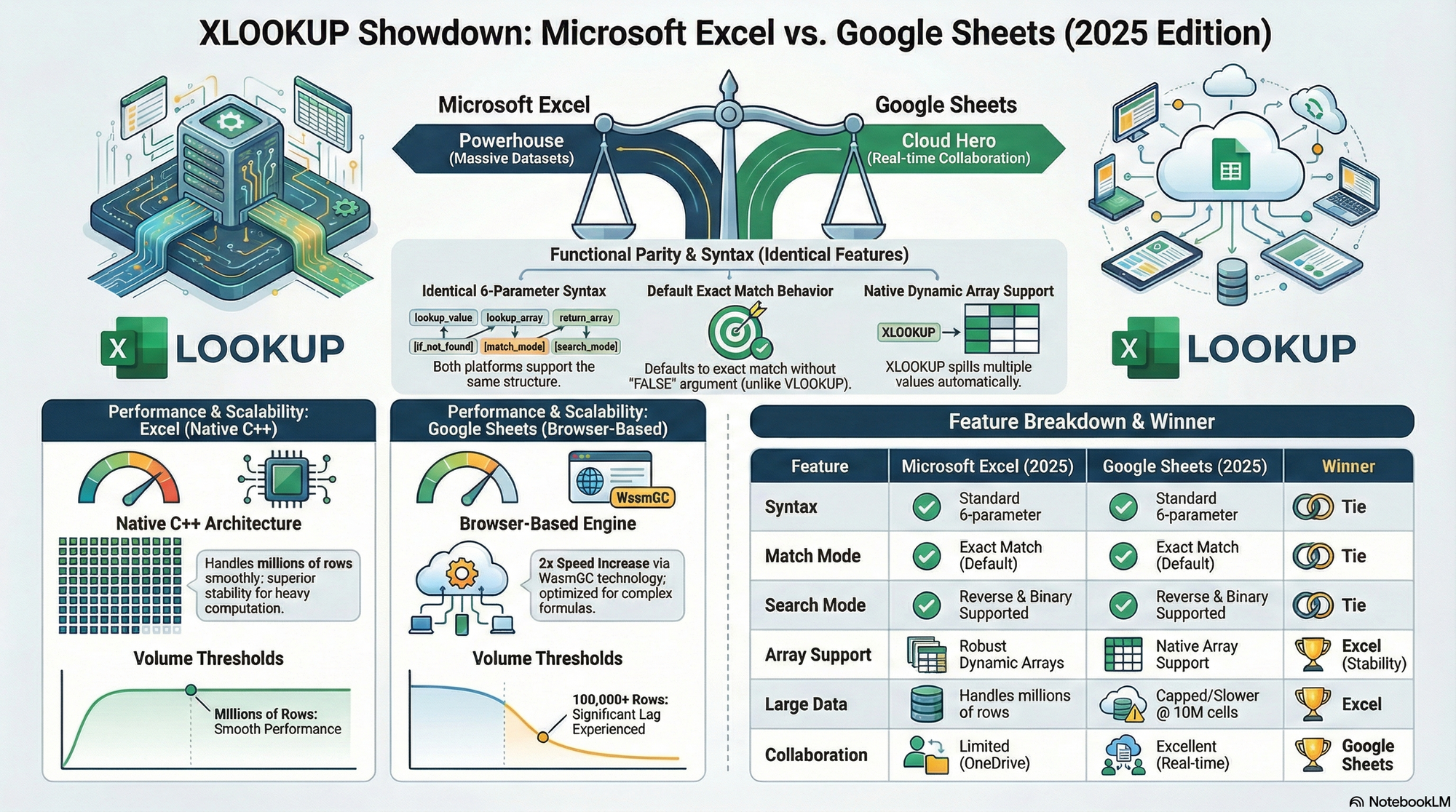
Key Takeaways:XLOOKUP uses the same syntax in both Excel and Google Sheets — 6 parameters, same orderExcel got XLOOKUP in 2019 (Office 365); Google Sheets added it in late 2022Excel supports wildcard matching (*, ?) natively; Google Sheets requires REGEXMATCH workaroundsBoth platforms handle XLOOKUP well, but large dataset performance differs based on calculation engine
XLOOKUP Syntax — Same in Both?
Yes, the core syntax is identical. In both Excel and Google Sheets, XLOOKUP follows this structure:
=XLOOKUP(search_key, lookup_range, result_range, [missing_value], [match_mode], [search_mode])Here's what each parameter does:
- search_key — The value you're searching for
- lookup_range — The range to search in (single row or column)
- result_range — The range to return results from
- missing_value (optional) — What to return if no match is found (defaults to #N/A)
- match_mode (optional) — 0 = exact, -1 = exact or next smaller, 1 = exact or next larger, 2 = wildcard
- search_mode (optional) — 1 = first to last, -1 = last to first, 2 = binary ascending, -2 = binary descending
The parameter names and numbering are the same. A formula you write in Excel will work in Google Sheets without modification — as long as you stick to the basic features. The differences show up in how each platform implements those parameters behind the scenes.
For a deeper dive into XLOOKUP in Google Sheets specifically, see our complete XLOOKUP guide for Google Sheets.
Feature Comparison Table
Here's a side-by-side comparison of XLOOKUP features across both platforms:
| Feature | Excel (Microsoft 365) | Google Sheets |
|---|---|---|
| Availability | Since 2019 (Office 365 / Excel 2021+) | Since late 2022 |
| Syntax | 6 parameters | 6 parameters (identical) |
| Exact match | Yes (match_mode 0) | Yes (match_mode 0) |
| Approximate match | Yes (-1 or 1) | Yes (-1 or 1) |
| Wildcard match | Yes (match_mode 2, supports *, ?, ~) | Limited — match_mode 2 accepted but behavior inconsistent |
| Binary search | Yes (search_mode 2 / -2) | Accepted but no confirmed performance gain |
| Reverse search | Yes (search_mode -1) | Yes (search_mode -1) |
| Array returns | Yes — spills automatically | Yes — spills automatically |
| Nested XLOOKUP | Fully supported | Fully supported |
| Cross-workbook | Yes (with open workbook) | No — use IMPORTRANGE instead |
| Error handling | Built-in missing_value parameter | Built-in missing_value parameter (identical) |
| Performance (large data) | Optimized with binary search and threaded calc | Cloud-based calc; slower on 100K+ rows |
Most everyday XLOOKUP usage works identically. The differences emerge in edge cases — wildcards, binary search optimization, and referencing external files.
Key Differences That Actually Matter
When XLOOKUP Arrived
Microsoft introduced XLOOKUP to Excel in August 2019 as part of the Office 365 subscription, later including it in the perpetual Excel 2021 release. Google Sheets didn't get XLOOKUP until late 2022, roughly three years later.
This timeline matters because many tutorials and community answers you'll find online were written during the gap years when XLOOKUP was Excel-only. If you're reading advice from 2020 or 2021 that says "XLOOKUP isn't available in Google Sheets" — that's outdated. It's fully supported now.
That said, if you're working with Excel 2019 (the perpetual license, not Office 365) or earlier, you don't have XLOOKUP in Excel either. It requires Microsoft 365 or Excel 2021+.
Wildcard Matching
This is the biggest functional difference between the two platforms.
In Excel, setting match_mode to 2 enables full wildcard matching:
*matches any sequence of characters?matches any single character~escapes a literal wildcard character
For example, =XLOOKUP("Smooth*", A:A, B:B, , 2) in Excel will find "SmoothSheet", "SmoothOperator", or any value starting with "Smooth".
In Google Sheets, match_mode 2 is technically accepted (no error), but wildcard behavior is inconsistent. Google's official documentation for XLOOKUP mentions wildcard support, but real-world testing shows it doesn't always match Excel's behavior — especially with the ? single-character wildcard.
If you rely heavily on wildcard lookups in Google Sheets, consider using FILTER with REGEXMATCH as a more reliable alternative:
=FILTER(B:B, REGEXMATCH(A:A, "Smooth.*"))Binary Search
In Excel, setting search_mode to 2 (ascending binary search) or -2 (descending binary search) can dramatically speed up lookups on sorted data. Binary search reduces the operation from O(n) to O(log n), which matters on datasets with tens of thousands of rows.
Google Sheets accepts these search_mode values without throwing an error, but there's no confirmed evidence that it actually performs a binary search. Google's cloud calculation engine handles optimization differently, and performance testing shows negligible speed differences between search_mode 1 and search_mode 2 in Sheets.
If performance on large datasets is a concern for your Google Sheets workflow, the bottleneck is usually not the lookup function itself but the sheer volume of data. For files that push Google Sheets' limits, SmoothSheet's CSV Joiner tool lets you perform VLOOKUP-style joins across large CSV files before importing — no formula overhead at all.
Cross-Workbook Behavior
In Excel, XLOOKUP can reference other workbooks directly — as long as the source workbook is open on your machine (or stored in a shared location). The formula looks something like:
=XLOOKUP(A1, [OtherFile.xlsx]Sheet1!$A:$A, [OtherFile.xlsx]Sheet1!$B:$B)In Google Sheets, cross-spreadsheet XLOOKUP is not supported. If you try referencing another spreadsheet directly, you'll get an error. Instead, you need to pull data from the other spreadsheet first using IMPORTRANGE, then run XLOOKUP on the imported data:
=XLOOKUP(A1, IMPORTRANGE("spreadsheet_url", "Sheet1!A:A"), IMPORTRANGE("spreadsheet_url", "Sheet1!B:B"))This is a well-known limitation of Google Sheets. For teams that compare Google Sheets to Excel for data management, cross-workbook lookups are one area where Excel still has a clear edge.
What About VLOOKUP and INDEX MATCH?
XLOOKUP was designed to replace VLOOKUP, and in most cases, it should. But there are scenarios where older functions still make sense.
Use VLOOKUP when:
- You're working in an older version of Excel that doesn't support XLOOKUP
- Your team is more familiar with VLOOKUP syntax
- The spreadsheet is shared with users on legacy platforms
Use INDEX MATCH when:
- You need left-side lookups (VLOOKUP can't look left; XLOOKUP and INDEX MATCH both can)
- You want maximum compatibility across all Excel and Sheets versions
- You're building complex nested lookups that benefit from INDEX MATCH flexibility
For a detailed breakdown, check out our guide on INDEX MATCH in Google Sheets — it covers when INDEX MATCH outperforms both VLOOKUP and XLOOKUP.
Use XLOOKUP when:
- You want cleaner, more readable formulas
- Built-in error handling matters (the missing_value parameter eliminates the need for IFERROR wrappers)
- You need reverse search or approximate matching without pre-sorting
- You're working in Excel 365/2021+ or Google Sheets (2022+)
The bottom line: if everyone on your team has access to XLOOKUP, there's little reason to use VLOOKUP anymore. INDEX MATCH remains useful for edge cases and backward compatibility.
Frequently Asked Questions
Does XLOOKUP work in Google Sheets?
Yes. Google Sheets added XLOOKUP support in late 2022. The syntax is identical to Excel's version, with six parameters including search_key, lookup_range, result_range, missing_value, match_mode, and search_mode. All core features work the same way.
Is XLOOKUP faster than VLOOKUP in Google Sheets?
In most practical scenarios, the speed difference is negligible. XLOOKUP and VLOOKUP perform similarly in Google Sheets because both rely on the same cloud calculation engine. The real advantage of XLOOKUP over VLOOKUP is flexibility (left lookups, built-in error handling, reverse search) rather than raw speed.
Can XLOOKUP pull data from another Google Sheets file?
Not directly. Unlike Excel, Google Sheets doesn't support cross-spreadsheet references in XLOOKUP. You need to use IMPORTRANGE to bring data from the other file into your current sheet first, then apply XLOOKUP on the imported range. If you regularly combine data from multiple sources, SmoothSheet can import large CSV and Excel files into Google Sheets without browser crashes, making multi-source lookups easier to set up.
Should I switch from VLOOKUP to XLOOKUP?
If your platform supports XLOOKUP (Excel 365/2021+ or Google Sheets), yes. XLOOKUP is more flexible, handles errors natively, supports reverse search, and can look in any direction. The only reason to keep VLOOKUP is backward compatibility with older Excel versions or shared spreadsheets where some users don't have XLOOKUP access.
Conclusion
XLOOKUP in Excel and Google Sheets shares the same syntax and core behavior, making it easy to move formulas between platforms. The meaningful differences — wildcard matching, binary search optimization, and cross-workbook references — only affect specific use cases.
For most users, XLOOKUP works the same way in both tools. Pick the platform that fits your workflow, and use XLOOKUP confidently knowing your formulas will translate. If your workflow involves importing large datasets into Google Sheets before running lookups, SmoothSheet handles the heavy lifting so you can focus on the analysis.