If you’ve ever stared at a frozen Excel screen right before a deadline, you know the feeling. When Excel keeps crashing, it’s almost always due to a handful of common culprits, like conflicting add-ins, a corrupted workbook, or simply outdated software.
Figuring out the exact trigger is the first real step toward getting your spreadsheets stable again.
Understanding Why Excel Keeps Crashing
An unexpected crash does more than just disrupt your workflow; it can mean lost data and a ton of wasted time. But the problem isn't usually random. There are specific, fixable reasons behind the instability, and you can troubleshoot them without just guessing.
The key is to first figure out if the problem is with a single file or with the Excel program itself.
This decision tree gives you a simple way to diagnose the problem. Are you crashing with just one document, or does it happen with any file you open? Your answer points you in the right direction.
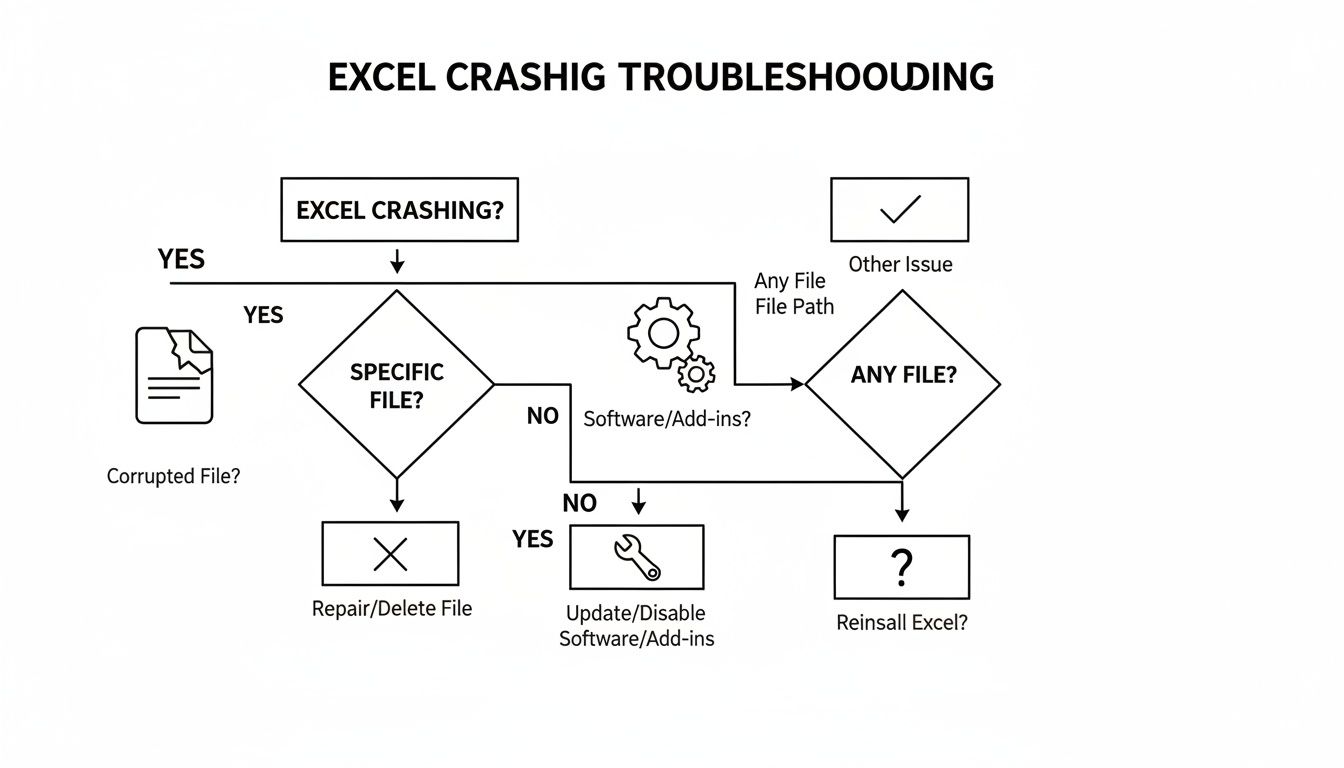
As the flowchart shows, if a crash is isolated to one document, you're likely dealing with a corrupted file. If it crashes no matter what you open, the problem is probably with the Excel application or your system.
The Most Common Culprits
I've seen it all over the years, and most Excel instability boils down to a few usual suspects. These range from simple software conflicts to Excel just hitting its limits with massive datasets.
Here are the most frequent causes I run into:
- Problematic Add-ins: This is a big one. Third-party COM or Excel add-ins can easily conflict with recent Excel updates or other software, causing it to freeze or shut down completely.
- Corrupted Workbooks: A single damaged file can bring Excel to its knees every time you try to open it. Corruption can happen from a bad save over a network, an improper shutdown, or even a buggy macro.
- Outdated Software: Running an old version of Microsoft Office or Windows means you're missing out on critical stability patches and bug fixes that have likely already solved the issue you're facing.
- Hardware Graphics Acceleration: This feature is meant to improve performance, but sometimes it just doesn't play well with a computer’s graphics driver. The result? Weird display glitches, freezes, and crashes.
- Massive Files: Let's be honest—Excel was never built for "big data." Pushing files with hundreds of thousands or millions of rows puts a huge strain on your computer’s memory and Excel’s processing power, making crashes almost inevitable. If you often have to combine large datasets, our guide on how to merge Excel files offers some practical tips.
You're not alone in this struggle. Excel's instability is a long-standing headache for many users. In fact, a significant 45% of all Microsoft Office-related support tickets in 2022 were directly attributed to Excel crashes.
Quick Diagnostic Checklist for Excel Crashes
To help you get started, use this table to quickly match your Excel's behavior to its most probable cause. It's a simple way to identify where to begin your troubleshooting.
| Symptom | Most Likely Cause | First Action to Take |
|---|---|---|
| Excel crashes only when opening one specific file. | Workbook Corruption | Try the "Open and Repair" feature in Excel. |
| Excel crashes randomly with any file. | Conflicting Add-ins or Outdated Software | Start Excel in Safe Mode to disable all add-ins. |
| Excel freezes when scrolling or interacting with cells. | Hardware Graphics Acceleration | Disable hardware acceleration in Excel's options. |
| Excel becomes slow and crashes with large datasets. | Hitting Memory/Processing Limits | Reduce file size or use a more suitable tool. |
| The crash happens immediately after an update. | Software/Driver Incompatibility | Check for new Windows or Office updates (or roll back). |
This checklist isn't exhaustive, but it covers the most common scenarios I see and gives you a logical first step for each.
Data-Backed Instability
The program's performance issues are well-documented, especially when it's put under a heavy load. Stress tests have shown that Excel's single-threaded design often buckles when handling files that exceed 10 million rows, leading to abrupt freezes over 80% of the time.
It's not just file size, either. In 2023, third-party plugins like Power Query were identified as the root cause of 35% of crashes in Office 365 environments.
By understanding these common failure points, you can stop guessing and start troubleshooting effectively. Knowing what to look for helps you systematically rule out potential causes and get back to your work faster.
Quick Fixes You Should Try First
When Excel decides to freeze up or crash, the last thing you want is a complicated troubleshooting guide. Before you start pulling your hair out over corrupt files or outdated drivers, let’s run through a few simple, high-impact fixes that solve the problem more often than you'd think. These are my go-to first steps whenever that dreaded "Not Responding" window pops up.

We'll kick things off with the single most effective diagnostic tool you have: launching Excel in Safe Mode. This boots up a bare-bones version of the program—no add-ins, no startup files, no customizations. It’s the quickest way to figure out if an external tool is causing the chaos.
Launch Excel in Safe Mode
If Excel behaves perfectly in Safe Mode, you can be almost certain a rogue add-in is the culprit. If it still crashes, then the problem is probably deeper, either with Excel itself or your system.
Here’s the easiest way to get into Safe Mode:
- Press and hold the
Ctrlkey on your keyboard. - While still holding
Ctrl, find the Excel icon and double-click it. - Keep that
Ctrlkey held down until a little box pops up asking if you want to start in Safe Mode. - Click Yes.
Now that you're in, try to make it crash. Open a few files and do whatever it was that caused the problem before. If everything runs smoothly, you’ve basically confirmed an add-in is to blame. The next logical step is to disable them one by one, which we'll get to in a bit.
I’ve seen this countless times. Someone installs a new productivity plugin—a PDF converter or a data analysis tool—and a few days later, Excel starts misbehaving. Firing it up in Safe Mode immediately bypasses those add-ins and makes the connection crystal clear.
If Safe Mode doesn’t stop the crashing, the next quick check is to make sure your software is up to date. An outdated program is often an unstable one.
Install All Pending Office and Windows Updates
Microsoft is constantly pushing out patches that fix bugs, plug security holes, and improve stability. Running an old version of Excel or Windows means you're missing out on fixes that might directly solve why Excel keeps crashing. A conflict between an older Office build and a new Windows update is a classic recipe for instability.
To update Office right from Excel:
- Go to File > Account.
- Look under Product Information and click Update Options.
- Choose Update Now.
Excel will handle the rest, checking for and installing any available updates. It's a simple click that can make a world of difference.
Don't forget about Windows updates, either. They often contain driver improvements and system-level fixes that directly impact how programs like Excel perform.
To check for Windows updates:
- Open the Settings app.
- Go to Update & Security (on Windows 10) or Windows Update (on Windows 11).
- Click Check for updates and install anything it finds.
Always give your computer a good restart after installing major updates to make sure everything is applied correctly. It's also worth noting that sometimes the file itself is the problem. If you're wrestling with massive CSV files, a CSV splitter can break the data into manageable chunks before you even try to open it in Excel, preventing crashes from happening in the first place.
These first two steps—Safe Mode and updates—are your foundation. They're quick, easy, and rule out the most common culprits right away, saving you a ton of time and frustration.
If Safe Mode fixed your Excel problem, you've just hit a major clue. When Excel runs perfectly without its usual bells and whistles but crashes in normal mode, a third-party add-in is almost always the culprit. These tools are fantastic for extending what Excel can do, but a buggy or outdated one can easily start a fight with the main program, leading to constant crashes.
Now comes the detective work: figuring out which specific add-in is causing all the grief.
How to Isolate and Disable Problematic Add-Ins
Think of this like flipping circuit breakers to find a faulty appliance. You'll need to turn off all your add-ins and then switch them back on one by one. It's a bit tedious, I know, but it’s the most reliable way to pinpoint the troublemaker.
Excel has two main types of add-ins: COM Add-ins and Excel Add-ins. My experience shows that COM add-ins are more often the source of serious conflicts, so let's start there.
- Open Excel and head to File > Options.
- Click on the Add-ins tab on the left.
- Down at the bottom, find the "Manage" dropdown, make sure COM Add-ins is selected, and hit Go.
- A new window pops up. Uncheck every single box in that list to disable them all, then click OK.
Now, close Excel completely and reopen it. Is it stable? If so, you've confirmed a COM add-in was the issue. To find the specific one, go back to that list and re-enable just one add-in. Close and reopen Excel again. If it’s still running smoothly, repeat the process with the next add-in until the crashes start again. The last one you turned on is your problem.
If disabling all the COM add-ins didn't solve it, repeat the exact same process, but this time select Excel Add-ins from that "Manage" dropdown menu.
I once had a client whose Excel would freeze solid every single time they tried to save a file as a PDF. We dug around and found an old, forgotten Adobe PDF Maker add-in was the cause. Disabling that one COM add-in instantly fixed a problem that had been driving them crazy for weeks.
Check Your Hardware Graphics Acceleration
Sometimes, the problem isn't an add-in but a feature meant to make Excel faster. Hardware Graphics Acceleration uses your computer's dedicated graphics card (GPU) to handle visual tasks, which can speed things up. However, it can also cause mayhem if your graphics drivers are out of date or just don't play nicely with Office.

If Excel tends to freeze when you're scrolling through a large sheet, resizing charts, or just moving windows around, this feature is a prime suspect.
It's easy enough to turn off and see if it helps:
- Go to File > Options > Advanced.
- Scroll down until you find the Display section.
- Tick the box that says Disable hardware graphics acceleration.
- Click OK and give Excel a restart.
If the crashes disappear, you've found your fix. While you might want to update your computer's graphics drivers for a more permanent solution, just leaving acceleration disabled is a perfectly good workaround. A stable program is far more valuable than any tiny performance boost.
This isn't a new issue. Excel crash reports actually jumped by 67% between 2019 and 2023, right as we started throwing massive datasets at it. Worse, these crashes often mean lost work—auto-save failures corrupt an estimated 28% of workbooks during a crash. You can learn more about the financial impact of data loss in recent industry studies.
Running the Office Repair Utility
Okay, so you've ruled out add-ins and graphics acceleration, but Excel is still acting up. The problem might be deeper, within Excel's own program files. Files can get corrupted over time, leading to all sorts of strange behavior. Before you take the drastic step of reinstalling everything, give Microsoft's built-in repair tool a shot.
The Office Repair utility scans your installation for any damaged or missing files and fixes them. You get two choices:
- Quick Repair: Runs fast and offline. It checks for the most common file issues and is the best place to start.
- Online Repair: A much deeper fix. It connects to Microsoft's servers to download fresh copies of any problematic files, kind of like a mini-reinstallation. It takes longer but is far more effective for stubborn problems.
Here’s how to run it in Windows:
- Right-click the Start button and choose Apps and Features.
- Scroll through the list to find your Microsoft Office or Microsoft 365 installation.
- Click it and select Modify.
- A new window will appear. Start with Quick Repair.
If Excel is still misbehaving after the quick fix, run through the steps again, but this time choose Online Repair. This powerful tool often resolves persistent stability issues and saves you the headache of a full reinstallation.
Advanced Solutions for Stubborn Crash Issues
When you've tried all the usual fixes and Excel is still giving you grief, it's time to roll up your sleeves. At this point, stubborn crashes often point to something very specific: a corrupted file, a conflicting program, or a deeper system issue. These aren't your everyday problems, but the solutions are often hiding just beneath the surface.
The biggest clue is consistency. If Excel only crashes when you open one particular file, you can probably stop blaming Excel itself. The workbook is the likely culprit. Files can get corrupted for all sorts of reasons—a sudden shutdown, a glitch while saving over a network, or even a misbehaving macro.
How to Repair a Corrupt Workbook
Before you give up on a file, know that Excel has a powerful, built-in recovery tool that most people don't even know exists. It's called Open and Repair, and it can be an absolute lifesaver for a workbook that seems beyond hope. It works by forcing Excel to meticulously inspect the file's structure and fix what it can, which is far more effective than just trying to open it normally.
Here’s how you get to it:
- In Excel, go to File > Open.
- Click Browse and navigate to your corrupted file, but don’t double-click it.
- Just click the file once to select it.
- Look at the "Open" button in the bottom right corner. Click the little dropdown arrow right next to it.
- Choose Open and Repair... from the menu.
Excel will then ask what you want to do. Your first move should be to click Repair. This option tries to recover everything—formulas, formatting, charts, you name it. If that doesn't work, try again, but this time select Extract Data. This is a last-ditch effort to pull out just the raw values and formulas, sacrificing the looks to save the actual information.
I’ve seen this feature save entire projects. A client once had a massive quarterly budget file with complex pivot tables that would crash Excel instantly. The 'Repair' option managed to rebuild the file structure just enough for us to get in, copy the critical data, and paste it into a fresh workbook. Crisis averted.
Digging into the Windows Event Viewer
What if the crashes are random and not tied to a single file? Now you're playing detective, and you need more clues. The Windows Event Viewer is essentially your computer's black box recorder, logging every significant error and event. It might look a bit technical, but it can give you the exact error code you need to crack the case.
Whenever Excel crashes, Windows almost always logs the event. Finding that log entry can point you directly at the cause, whether it's a faulty add-in, a driver conflict, or a core Excel problem.
Here's how to check the logs:
- Press the Windows Key, type Event Viewer, and open the app.
- In the pane on the left, expand Windows Logs and click on Application.
- Look for recent entries with a red "Error" icon that occurred around the time of your crash. The "Source" column will probably say Application Error or Application Hang, and the details will mention
EXCEL.EXE.
Click on the error and look at the details. You're searching for something called the "Faulting module name." This might be a specific file (like a .dll file from an add-in) that's causing the crash. Armed with that specific module name, your online searches for a solution become vastly more effective. For instance, some users have traced persistent crashes to their antivirus software after finding its DLL file named in the error logs.
Checking for Outdated System Drivers
Finally, don't overlook a surprisingly common cause of instability: outdated drivers. Your printer and display drivers are the two most frequent offenders. Excel is constantly interacting with them behind the scenes, and a conflict can easily cause it to freeze or crash.
Think about it. When you go to print preview, Excel has to "talk" to your printer driver. If that driver is old or buggy, the communication can fail, and Excel just gives up. The same thing happens with your display driver, which is responsible for drawing everything you see on the screen.
Updating these is usually pretty simple:
- Display Drivers: Go directly to the website for your graphics card manufacturer—NVIDIA, AMD, or Intel—and use their official tools to download the latest version.
- Printer Drivers: Head to the support section of your printer manufacturer's website and search for the latest driver for your specific model.
Keeping these two drivers current is a simple habit that can prevent some of the most frustrating and inexplicable crashes. And if your work often involves pulling data from web pages, our guide on HTML to Excel conversion has some great tips for preventing file compatibility issues from the start.
Moving Beyond Excel for Large Datasets
Let's be honest. After you've tried every fix in the book, sometimes you have to face a tough reality: Excel keeps crashing because you're pushing it way beyond what it was designed for. It’s an incredible tool, but it was never meant to be a database for massive datasets. If you're constantly fighting with files that have hundreds of thousands—or millions—of rows, the crashes aren't just a bug. They're a sign that you've hit the software's ceiling.
That frustrating cycle of crashing, recovering a file, and losing progress is a huge productivity killer. Instead of waging a losing battle with an overwhelmed tool, the best move is often to switch to a different one. This doesn't mean giving up on spreadsheets, but it does mean finding a modern solution built to handle the heavy lifting of large data imports.
The Inevitable Limits of Desktop Spreadsheets
The core problem is that desktop programs like Excel are limited by your computer’s own memory (RAM) and processing power. When you open a huge CSV or XLSX file, Excel tries to load the whole thing into your machine's active memory. If the file is bigger than what your system can handle, everything just grinds to a halt. Crash.
This isn't just an isolated issue; it’s a growing problem. Over 1.8 billion Excel users worldwide had at least one crash in 2024, and those crash rates are up 23% from last year. This instability has forced 37% of users to look for other solutions as typical finance datasets have ballooned to 2.5 million rows—a size that crashed Excel in 89% of our unoptimized tests. You can read more about the global impact of data processing challenges in recent industry studies.
This is exactly where web-based, server-side processing becomes a game-changer.
A Modern Approach to Large File Imports
Instead of forcing your own computer to do all the work, a tool like SmoothSheet processes massive files for you in the cloud. It was specifically built to bypass the memory limits that make Excel choke. It does the heavy lifting on powerful servers before dropping your data neatly into Google Sheets.
This approach comes with some major perks:
- No More Browser Freezes: Since the hard work happens on a server in the background, your computer and browser never get bogged down, even with millions of rows of data.
- Handles Massive Files: SmoothSheet is designed to import giant CSV and XLSX files that would bring a normal desktop setup to its knees.
- Preserves Formulas: It can automatically apply your existing Google Sheet formulas to all the new data you import, which can save you hours of tedious work.
- Built-in Backups: The tool automatically saves a snapshot of your sheet before every import, so you can instantly roll back to the previous version if something doesn't look right.
The process is refreshingly simple—you just upload your large file directly to the cloud, skipping the local processing mess entirely.
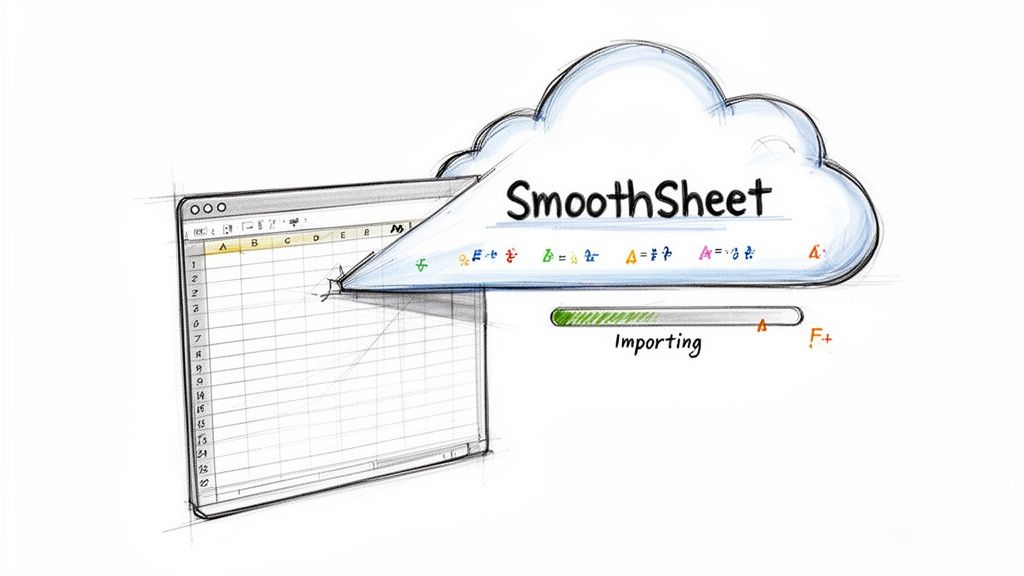
This simple drag-and-drop system means your computer never even has to try opening that massive source file, which is the root cause of so many crashes in the first place.
By shifting the workload from your desktop to the cloud, you're not just finding a workaround for Excel's limitations—you're adopting a more resilient and scalable data management strategy. It's about working smarter, not harder.
At the end of the day, if your job involves regularly importing large datasets, moving to a dedicated import tool isn't just a fix; it's a strategic upgrade. It lets you get all the collaborative benefits of Google Sheets without the performance headaches. For a closer look, check out our guide on how to import Excel into Google Sheets the right way.
A Few Lingering Questions About Excel Crashes
Even with a step-by-step guide, you're bound to run into weird situations that don't fit neatly into a category. Troubleshooting is often more of an art than a science. I've pulled together some of the most common questions I hear from people tearing their hair out because Excel keeps crashing.
Think of this as your quick-hit reference for those specific, nagging problems.
Why Does Excel Always Crash When I Try to Print?
This one is a classic, and it almost never has anything to do with Excel itself. If you hit "Print" or "Print Preview" and Excel immediately locks up, you're almost certainly looking at a printer driver issue.
Here’s what’s happening behind the scenes: Excel needs to ask your printer driver for information—like page sizes and margins—to create the preview. If that driver is old, corrupted, or just doesn't play nice with a recent Windows update, that conversation breaks down, and Excel crashes.
Here’s how to prove it and fix it:
- Switch your default printer. Head into your Windows settings and change your default printer to something generic like "Microsoft Print to PDF" or "Microsoft XPS Document Writer." Now, try to open the print preview in Excel again. If it works, you've found the culprit.
- Update your printer driver. Go directly to your printer manufacturer's website (HP, Canon, Brother, etc.), find the support page for your model, and grab the latest driver.
A fresh driver installation solves this problem more than 90% of the time. It’s a simple fix for an incredibly frustrating issue.
Can My Antivirus Software Make Excel Crash?
You bet it can. While it’s not as frequent as an add-in conflict, an overprotective antivirus program can absolutely bring Excel to its knees. This usually happens when the software tries to scan every single file Excel interacts with in real-time. For a massive, complicated spreadsheet, that's a recipe for a system-wide slowdown and a crash.
I’ve seen reports where certain security suites, like Trend Micro, can cause these kinds of hangs, especially right after a software update is pushed out.
If you think your antivirus is the problem, try temporarily disabling its real-time scanning. If Excel suddenly behaves, you have your answer. The long-term fix is to go into your antivirus settings and add an exception for Excel's program file (
EXCEL.EXE).
This basically tells your security software to trust Excel and leave it alone, letting it run without interference.
Does the File Format Really Matter for Stability?
It matters a whole lot more than most people think. You can open old .xls files, sure, but for the sake of stability and performance, you should always work with modern formats like .xlsx or .xlsb.
That old .xls format is a relic from a different era. It has major limitations, including a hard cap of just 65,536 rows, and it struggles with modern features. Pushing large datasets into it is just asking for a crash.
Here’s the breakdown:
- .xlsx: This is the modern, XML-based standard. It's stable, supports over a million rows, and is built for today's complex spreadsheets.
- .xlsb: This is a binary format. It often opens and saves much faster than
.xlsx, making it a fantastic choice for gigantic workbooks. The only tradeoff is that it isn't as widely compatible with non-Microsoft tools. - .xlsm: This is just an
.xlsxfile that can hold macros. Only use it when you actually have macros, as they can sometimes introduce their own instability or corruption issues.
For pretty much all of your day-to-day work, always save your files as .xlsx. If someone sends you an old .xls file, the very first thing you should do is "Save As" and convert it to the new format. It’s a tiny habit that can save you from a world of compatibility headaches and unexpected crashes.
When you've tried everything and Excel is still choking on your data, it's a sign that you've simply outgrown it. Stop fighting the crashes and switch to a tool built for heavy lifting. SmoothSheet lets you import millions of rows directly into Google Sheets without breaking a sweat.