
Getting data from a website into a spreadsheet is a common chore, but it can be incredibly frustrating. The most straightforward way is just copying a table from a webpage and pasting it into your sheet. But as we'll see, there are far better ways to get clean, automated, and even massive amounts of data extracted properly.
Why Converting HTML Tables to Spreadsheets Matters
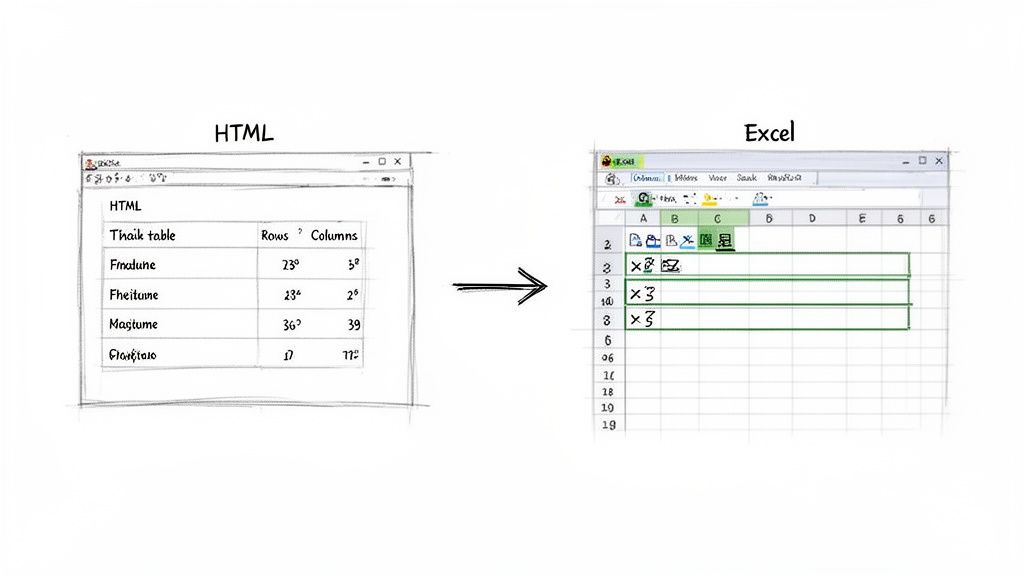
No matter what your job is, you've probably needed to pull data from a web page into a structured format like Excel or Google Sheets. This simple act is the bridge between raw information you find online and the business intelligence you can actually act on. Without a good process, that valuable data stays locked away in website code, totally useless for any real analysis.
Think about it in a real-world context. A marketing analyst might need to grab competitor pricing tables every week to see how their own strategy stacks up. A finance team might have to pull daily sales figures from an old, internal web portal that doesn't have a "download" button. These aren't just one-off tasks; for many people, they're part of the daily grind.
The Challenge of Unstructured Data
The heart of the problem is that most data on the web is unstructured. It’s laid out to look good for people reading it, not for a computer to easily parse. It’s no surprise that HTML conversion services have become a huge piece of the global data conversion market, making up almost one-fourth of the share. Companies are constantly trying to digitize old content and make sense of web-based info. You can discover more insights on the data conversion market to see just how big this trend is.
This is exactly why a simple copy-paste often fails. You try it, and you end up with a mess:
- Broken Formatting: Merged cells go haywire, columns don't line up, and all the website's styling choices wreck your spreadsheet's layout.
- Messy Data: You get hidden HTML code, random images, and bits of text that you have to painstakingly clean up by hand.
- Incomplete Information: If the table has multiple pages or loads data as you scroll, a single copy-paste won't capture everything.
The real goal of converting HTML to Excel isn't just to move data. It's to transform it from a format meant for presentation into one built for analysis. Clean, structured data is everything—it's the foundation of any report or dashboard worth looking at.
This guide will walk you through the best approaches, from quick manual tricks for small tables to powerful, automated solutions for handling massive datasets. By the end, you'll be ready to tackle any data conversion challenge that comes your way.
Simple Manual Methods for Quick Data Grabs
Sometimes you just need the data, and you need it now. You don't always have to fire up a script or build an automated workflow for a one-off task. When you're in a hurry, a couple of simple manual tricks can get you from a web table to a spreadsheet in literal seconds.
The most obvious move is a good old copy-and-paste, but as you've probably discovered, the results can be… unpredictable.
Pasting a table straight from a website into Excel or Google Sheets often brings along a chaotic mess of unwanted web formatting. Columns get jumbled, text sizes are all over the place, and hidden HTML junk can completely wreck your layout. The secret isn't in the copying; it's all in the pasting.
The Power of Paste Special
Forget the standard Ctrl+V (or Cmd+V). Your best friend here is the Paste Special command. You'll find it in the right-click menu in Excel or under Edit > Paste special in Google Sheets.
This little menu is a game-changer. It gives you a few critical options:
- Values only: This is your go-to 99% of the time. It strips away every bit of formatting—fonts, colors, hyperlinks, you name it—leaving you with nothing but the clean, raw data in a perfect grid.
- Text: This is another great choice, especially if you're dealing with numbers that shouldn't be treated like numbers. Think ZIP codes, product IDs, or phone numbers. This option prevents Excel from getting creative and auto-formatting them into dates or scientific notation.
Using Paste Special is the single most important trick for a clean manual HTML to Excel conversion. It sidesteps nearly all the common formatting headaches you’ll encounter.
Pro Tip from the Trenches: When I'm working in Excel, the "Match Destination Formatting" option can be a real lifesaver. If you're dropping data into a report you've already styled, this tells Excel to make the new data conform to the formatting you've already set up.
Look for Hidden Export Buttons
Before you even highlight a single cell, take 30 seconds to scan the page. You'd be surprised how often websites have built-in export features that people just don't notice. Look carefully around the table for small icons or text links that say things like:
- Export to CSV
- Download Data
- Export to Excel
For instance, analytics platforms like HubSpot almost always have an option to export reports and data tables directly into a CSV or XLSX file. Finding one of these buttons is the dream scenario—you get a perfectly structured file with zero effort.
Using Browser Developer Tools
Okay, if you want to get a little more technical for a perfectly clean copy, you can go straight to the source code using your browser's developer tools.
Just right-click anywhere on the table you want to grab and choose "Inspect" or "Inspect Element." This pops open a panel showing you the page's HTML.
Now, just find the <table> tag that holds your data. Right-click on that element right there in the code view and select "Copy > Copy element" or "Copy > Copy outerHTML." You've just copied the raw, unstyled HTML for that table. Paste it into a plain text editor, save it as an .html file, and then open that file directly with Excel. Excel will parse the HTML and convert it into a perfectly structured spreadsheet.
Manual copy-pasting is fine for a one-off task, but what if you need to track data that changes all the time? Think daily sales figures, weekly stock prices, or project status updates from a web portal. Constantly re-copying that data is a surefire way to introduce errors and waste a ton of time.
This is where Google Sheets becomes more than just a spreadsheet—it can become a live data dashboard.
The magic happens with a deceptively simple function: =IMPORTHTML. This little gem tells Google Sheets to visit a webpage, find a specific table or list, and pull the data right into your cells. The best part? It refreshes automatically, usually about once an hour, so your sheet stays current without you having to lift a finger.
How the IMPORTHTML Formula Works
The function itself is pretty straightforward and just needs three pieces of information:
=IMPORTHTML("url", "query", index)
- URL: The full web address of the page with the data you want. Just make sure to wrap it in quotation marks.
- Query: This tells Google Sheets what to look for. Your only two options are
"table"or"list", depending on how the data is structured on the page. - Index: A webpage can have multiple tables or lists. This number tells Google Sheets which one you want to grab. The first one is
1, the second is2, and so on.
Let's try a real-world example. Say you want to pull the list of the world's largest companies by revenue from Wikipedia into your sheet. That page has a few tables, but you’re interested in the main one.
To get the table shown in the image above, you would pop this formula into cell A1 of a blank sheet:
=IMPORTHTML("https://en.wikipedia.org/wiki/List_of_largest_companies_by_revenue", "table", 1)
Just like that, Google Sheets will fetch the entire table and display it for you.
What to Do When It Doesn't Work
Of course, things don't always go smoothly on the first try. If you run into trouble, it's usually one of a few common issues:
- You get an #N/A Error: This almost always means Google Sheets couldn't find a table at the index number you used. The fix is simple: just try changing the number at the end of the formula (
1,2,3, etc.) until you hit the right one. - You see a #REF! Error: This usually points to a problem with the URL itself or a temporary glitch preventing Google from reaching the page. Double-check your link to make sure it’s correct and publicly accessible.
- The import is empty: This is a classic sign that the webpage loads its data using JavaScript.
IMPORTHTMLcan't run scripts, so it sees an empty table. If that's the case, this method won't work, and you'll need to try something else.
IMPORTHTMLis fantastic for a hands-off html to excel conversion, but it’s not a silver bullet. It excels at pulling data from simple, public HTML tables but will fall short on dynamic, JavaScript-heavy websites or pages that require you to log in.
A Quick Guide to Conversion Methods
For many quick data grabs, figuring out the best approach depends on the source and complexity. Sometimes a simple copy-paste is all you need, while other times a formula or script is the better tool for the job.
Here’s a quick comparison to help you decide which method fits your situation.
Comparison of HTML to Spreadsheet Conversion Methods
| Method | Best For | Effort Level | Handles Large Data? | Preserves Formatting? |
|---|---|---|---|---|
| Copy & Paste | Quick, one-off data grabs from simple tables. | Very Low | No | Sometimes (poorly) |
=IMPORTHTML |
Live, auto-refreshing data from public HTML tables. | Low | No | No |
| Scripting (e.g., Python) | Complex, large-scale, or recurring data extraction tasks. | High | Yes | Yes (with effort) |
| CLI Tools | Automating exports in a development workflow. | Medium | Yes | No |
| Server-Side Imports | Very large files (>100,000 rows) that crash browsers. | Low | Yes | Yes |
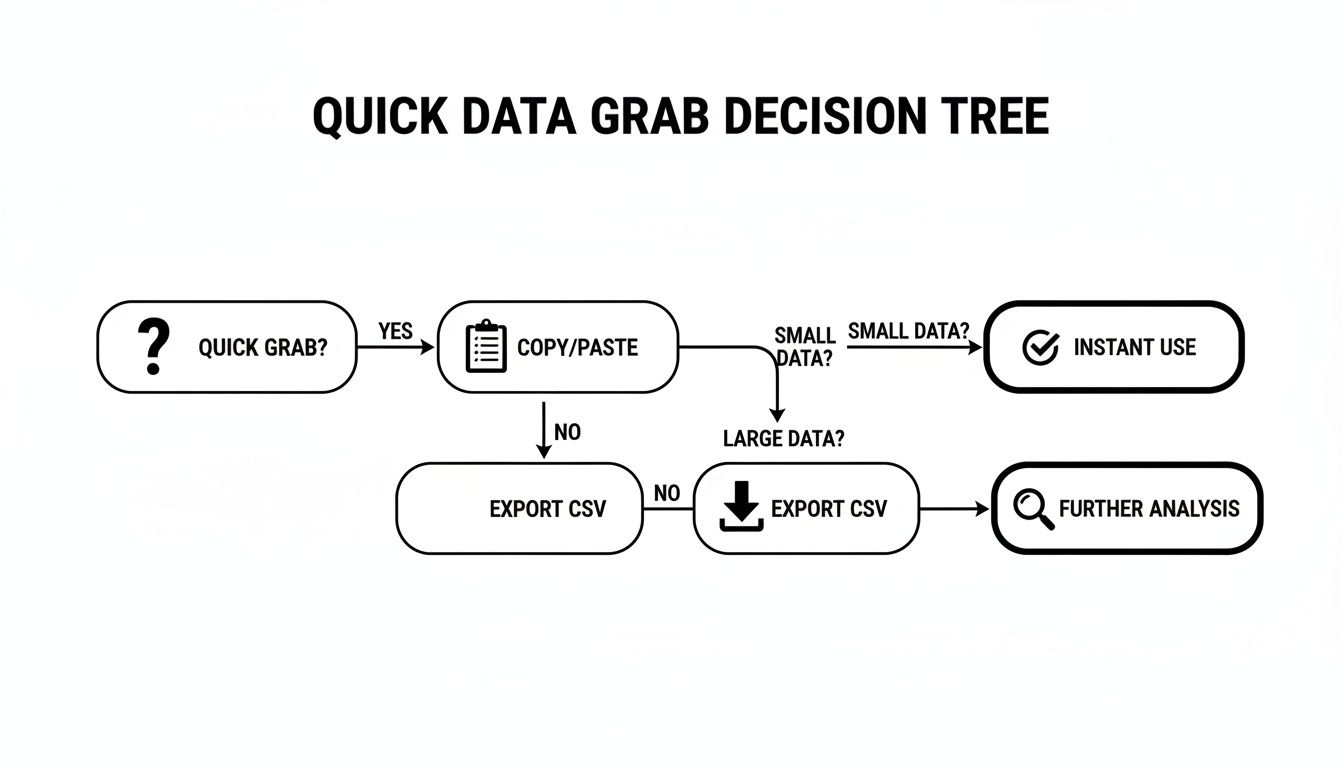
Ultimately, the goal is to get the data you need with the least amount of friction. The simplest path for a quick grab is often a direct copy-paste or looking for a built-in "Export to CSV" button on the website.
And while IMPORTHTML is incredibly handy, remember that Google Sheets has its own boundaries. It's worth learning more about the Google Sheets row limit to understand how it might impact very large data imports you're planning.
Using Python Scripts to Automate Conversions
When you've hit the limits of manual methods and built-in formulas, it’s time to level up. Scripting is your best bet for handling repetitive HTML to Excel conversions, especially if you need to pull data from multiple pages or build a proper data pipeline. For this kind of work, Python is the go-to language, largely thanks to its fantastic, easy-to-use libraries.
Don't let the word "scripting" intimidate you. You don't have to be a seasoned developer to make this work. The basic idea is pretty simple: write a small program that fetches a webpage, pinpoints the exact data table you're interested in, and then saves it all into a clean Excel or CSV file. It's fast, incredibly accurate, and completely repeatable.
The Tools of the Trade
To get this done, you'll lean on a couple of powerhouse Python libraries that work beautifully together:
- BeautifulSoup: This is your HTML navigator. It takes messy, raw web code and organizes it into a neat structure your script can understand. You can use it to find every
<table>tag on a page or zero in on one with a specific ID. - pandas: The undisputed champion of data handling in Python. Once BeautifulSoup has pulled the table data out, pandas steps in to arrange it into a clean, row-and-column format called a DataFrame. From there, saving it as an
.xlsxor.csvfile takes just a single command.
The workflow is logical and direct. Your script sends a request to a URL, grabbing its HTML. BeautifulSoup then parses that HTML so you can find the table. Finally, you just loop through the table's rows and cells, load that data into a pandas DataFrame, and save the file. If you want to see this in action, check out our other posts on Python and pandas for data tasks.
Why Bother with a Script?
It might seem like a lot of effort, but building a custom script is often the only practical solution. As CEO Changmin Choi pointed out, very few websites are designed for easy data export. Out of 1.9 billion websites, a tiny 0.0013% offer a public API for clean data access. This reality often forces us to build our own tools to get the data we need. You can read more about these data extraction challenges.
Think about it this way: when a website's layout changes, a Python script can often be updated in a few minutes to adapt. A manual copy-paste workflow, on the other hand, means you have to figure out the whole process all over again.
This approach puts you firmly in the driver's seat. You can clean up messy data as you extract it, merge tables from several different pages into one file, or even schedule your script to run at regular intervals. It's the most powerful and scalable way to tackle any serious data-gathering project.
How to Handle Huge HTML Exports Without Crashing Your Browser

The true test of any HTML to Excel conversion workflow isn't how complex it is—it's how it holds up at scale. Everything changes when you're dealing with millions of rows instead of thousands. This is where most standard methods completely fall apart.
We’ve all been there. You try to open a massive HTML file or copy a giant table, and Chrome gives you the dreaded “Page Unresponsive” error. Your laptop's fans whir to life, your browser locks up, and you’re forced to kill the process and start over. It's a universal headache for anyone working with serious data.
This isn't your computer's fault. It's a basic limitation of client-side processing, which means all the heavy lifting is happening right inside your browser, using your machine's own memory (RAM) and CPU.
Why Your Browser Just Can't Keep Up
Your web browser is a fantastic tool, but it was never built to be a high-performance data engine. When you feed it an HTML file with millions of rows, you’re asking it to load that entire mountain of data into your computer’s RAM all at once.
- Memory Overload: Most computers simply don't have enough spare RAM to hold and render that much information. A crash is almost guaranteed.
- Spreadsheet Limits: Even if you managed to copy the data, platforms like Google Sheets have hard limits on the total number of cells. The sheet will simply refuse a dataset that’s too big.
- Local Scripts Choke: A Python script running on your own machine can also hit a wall, eating up all available memory and grinding your entire system to a halt if it isn't perfectly optimized.
This is exactly why the demand for reliable data conversion services is exploding. The market was valued at USD 39.8 billion in 2021 and is projected to hit an incredible USD 566 billion by 2031. You can discover more about this market's impressive growth to see just how critical new solutions have become.
The problem is simple: your laptop isn't a server. For truly massive datasets, you have to stop processing data locally and move the work to the cloud.
The Modern Fix: Server-Side Processing
The solution is to offload the entire conversion job to a powerful, dedicated server. This is precisely what tools like SmoothSheet were created for. Instead of your browser struggling, the file gets processed on a high-performance server built for exactly this kind of task.
The workflow is completely different and much more reliable:
- First, you upload the large HTML file directly to the server, bypassing your browser's memory.
- Next, the server’s powerful processors and huge memory reserves handle all the parsing and conversion.
- Finally, the clean, structured data is fed into your destination (like Google Sheets) in manageable pieces.
This server-side approach neatly sidesteps all the common points of failure. Your browser isn't doing the heavy lifting, so it never freezes. And because the tool communicates intelligently with the Google Sheets API, it can get around the typical row limits you’d hit with a manual upload.
If this problem sounds familiar, our guide on how to upload large CSV files to Google Sheets without browser crashes offers a much deeper dive.
For finance professionals, BI specialists, and anyone else who can't afford to lose hours fighting with failed imports, server-side processing isn't just a nice-to-have—it's essential.
Common Questions About Converting HTML to Excel
When you're pulling data from the web, a few common roadblocks always seem to pop up. Let's walk through some of the questions I hear most often and how to tackle them based on real-world experience.
How Can I Keep the Original Formatting?
This is a big one. You’ve found the perfect table, but when you paste it, all the colors, bold text, and column widths are a complete mess. Standard copy-paste just grabs the text, not the style.
For this, your browser's "Inspect" tool is your best friend. Right-click the table on the webpage and choose "Inspect." In the code that appears, find the <table> element, right-click it, and copy the entire element's HTML.
Now, just paste that block of code into a plain text editor and save it with an .html extension (like data.html). Open that file directly with Excel. You'll be surprised at how well Excel can parse the basic HTML structure, often preserving things like:
- Cell background colors
- Bold and italic font styles
- Basic table layouts
It's not perfect, but it gives you a much better starting point than a jumbled, unformatted paste.
What About Tables Split Across Multiple Pages?
Ah, the classic pagination problem. You've got a table with hundreds of rows, but they're spread across 10 or 20 pages. A simple tool like =IMPORTHTML or a manual copy-paste can't handle this because they only see one page at a time.
This is where you need to move beyond simple tools. The go-to solution for this scenario is a custom Python script. Using libraries like BeautifulSoup for parsing the HTML and Selenium for browser automation, you can write a script that "clicks" the "Next" page button, scrapes the table from each page, and then stitches all that data together into a single, clean CSV or Excel file.
This might sound complex, but for any repetitive data collection, automation is a lifesaver. It’s the difference between an hour of mind-numbing clicking and a script that does the work for you in seconds. If you're consolidating data from multiple files, you might also find our guide on how to import Excel files into Google Sheets helpful.
The key takeaway is simple: for any repetitive or multi-page data extraction, automation is your best friend. Manual methods are fine for a quick grab, but they introduce errors and become a massive time-sink as the job gets bigger.
Which Method Is Best for My Specific Needs?
Choosing the right approach really boils down to what you're trying to accomplish. There's no single "best" method, only the right tool for the job.
Think of it this way:
- Quick and dirty, one-time pull? A simple copy-paste using the "Paste Special" option is usually all you need. It’s fast and gets the job done.
- Tracking live data from a public source? Google Sheets and its
=IMPORTHTMLfunction are fantastic. Set it up once, and it will automatically refresh the data for you. - Large, paginated, or complex datasets? This is where you bring in the heavy hitters. A custom script or a dedicated server-side tool is the only reliable way to handle this kind of work without manual errors or wasted time.
When your data challenges scale up to massive files that crash your browser, SmoothSheet offers a better way. It processes huge CSV and Excel files on secure servers, letting you import millions of rows into Google Sheets without freezes or row limits. Try SmoothSheet for free and see how easy large-scale data imports can be.