
Need to count how many cells match a specific value in Google Sheets? The COUNTIF function is one of the most useful tools in your spreadsheet toolkit. Whether you're tracking how many orders came from a particular region, counting overdue invoices, or tallying responses in a survey, COUNTIF in Google Sheets gives you the answer in a single formula. In this guide, you'll learn the exact syntax, see practical examples for text, numbers, dates, and wildcards, and discover how to handle multiple criteria with COUNTIFS.
Key Takeaways:COUNTIF counts cells matching one criterion:=COUNTIF(range, criterion)Use wildcards (*and?) for partial text matches across thousands of rowsCOUNTIFS handles multiple criteria with AND logic; wrap in SUM for OR logicFor datasets over 100K rows, SmoothSheet imports your CSV/Excel files without browser crashes
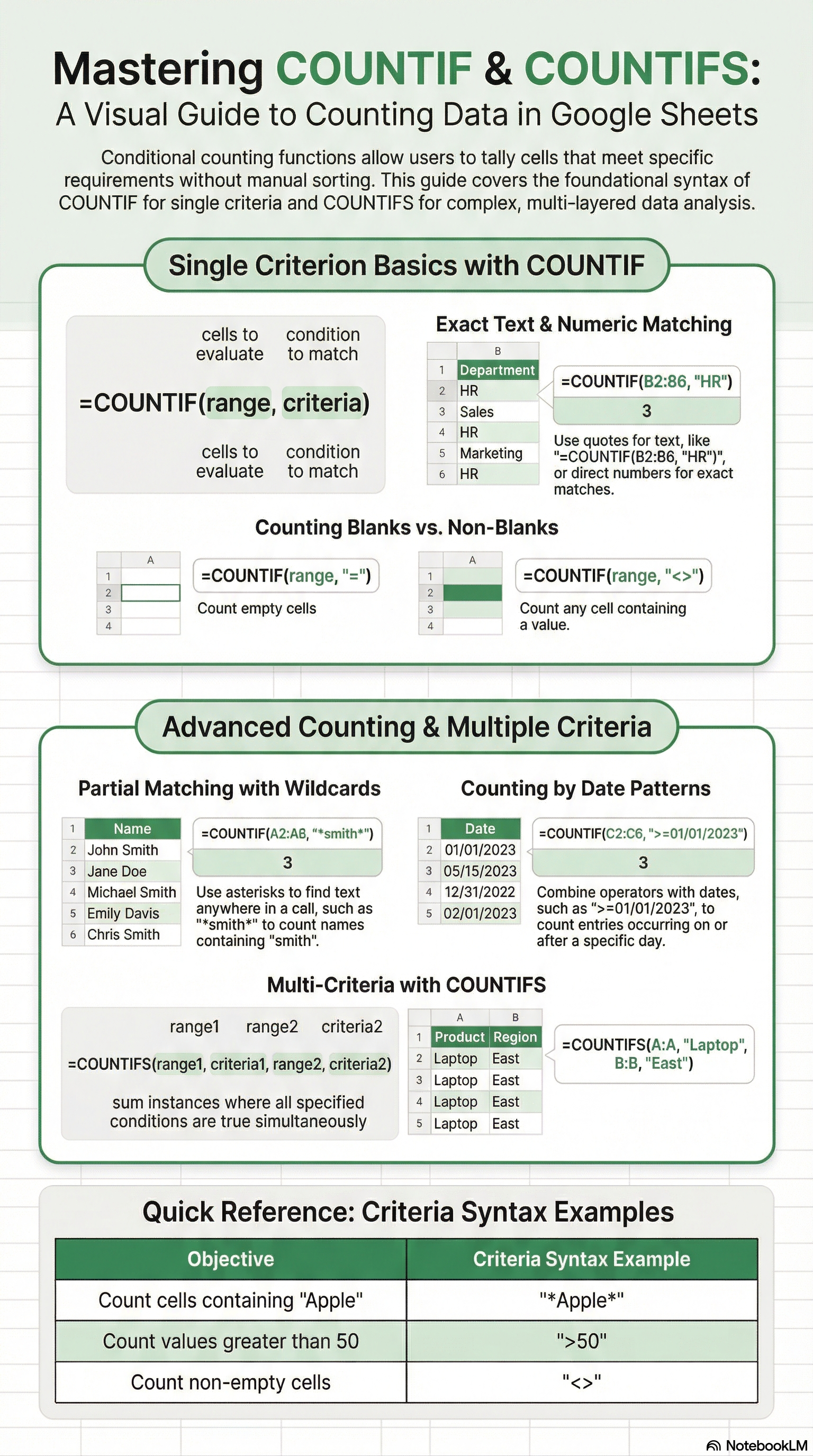
COUNTIF Syntax Explained
The COUNTIF function follows a straightforward two-argument structure:
=COUNTIF(range, criterion)| Argument | Description | Example |
|---|---|---|
| range | The group of cells you want to evaluate | A2:A100 |
| criterion | The condition cells must meet to be counted | "Shipped", ">500", "*apple*" |
A few important rules about the criterion argument:
- Text criteria must be wrapped in double quotes:
"Shipped" - Comparison operators also go inside quotes:
">100","<=50" - Cell references in criteria use the ampersand operator:
">"&B1 - Text matching is case-insensitive by default —
"apple"matches "Apple", "APPLE", and "apple"
If you've used the QUERY function for filtering data, think of COUNTIF as a lighter alternative when you only need a count, not the actual rows.
COUNTIF Examples
Let's walk through the most common scenarios. For each example, imagine you have a dataset of orders with columns for Product (A), Region (B), Amount (C), and Status (D).
Count Text Matches
To count how many orders have a status of "Shipped":
=COUNTIF(D2:D500, "Shipped")This scans every cell in D2:D500 and returns the total number of cells containing exactly "Shipped". Remember, text matching is case-insensitive, so "shipped" and "SHIPPED" are counted too.
You can also reference a cell instead of hardcoding the value:
=COUNTIF(D2:D500, F1)Where F1 contains the text you want to match. This is especially useful when building interactive dashboards where users pick a value from a dropdown.
Count Numbers Greater/Less Than
To count orders above $500:
=COUNTIF(C2:C500, ">500")For orders between $100 and $500, you'll need two COUNTIF calls (or use COUNTIFS, which we'll cover shortly):
=COUNTIF(C2:C500, ">=100") - COUNTIF(C2:C500, ">500")Other comparison operators you can use:
| Operator | Meaning | Example |
|---|---|---|
">" | Greater than | =COUNTIF(C2:C500, ">1000") |
"<" | Less than | =COUNTIF(C2:C500, "<50") |
">=" | Greater than or equal to | =COUNTIF(C2:C500, ">=100") |
"<=" | Less than or equal to | =COUNTIF(C2:C500, "<=999") |
"<>" | Not equal to | =COUNTIF(D2:D500, "<>Cancelled") |
Count with Wildcards
Wildcards let you count cells that partially match a pattern. Google Sheets supports two wildcard characters in COUNTIF:
*— matches any sequence of characters (zero or more)?— matches exactly one character
Example 1: Count all products containing "Pro" anywhere in the name:
=COUNTIF(A2:A500, "*Pro*")This matches "Pro Plan", "ProMax Widget", "Super Pro", and so on.
Example 2: Count product codes that start with "SKU-" followed by exactly 4 characters:
=COUNTIF(A2:A500, "SKU-????")Example 3: If you need to count cells that literally contain an asterisk or question mark, escape it with a tilde (~):
=COUNTIF(A2:A500, "*~**")This counts cells containing an actual * character.
Count Non-Empty and Empty Cells
To count cells that contain any value (non-empty):
=COUNTIF(A2:A500, "<>")To count completely blank cells:
=COUNTIF(A2:A500, "")The "<>" criterion means "not equal to empty," so it returns cells with text, numbers, or even formulas that output a value. Keep in mind that cells with a formula returning an empty string (="") are technically non-empty — they contain a formula. If this distinction matters for your analysis, the IFERROR function can help you handle such edge cases in your formulas.
COUNTIFS — Multiple Criteria
When a single condition isn't enough, COUNTIFS lets you apply two or more criteria simultaneously. The syntax extends COUNTIF with additional range-criterion pairs:
=COUNTIFS(range1, criterion1, range2, criterion2, ...)All criteria use AND logic — a cell is counted only when every condition is met.
AND Logic Example
Count shipped orders above $500:
=COUNTIFS(D2:D500, "Shipped", C2:C500, ">500")This only counts rows where the status is "Shipped" AND the amount exceeds 500.
You can stack up to 127 criteria pairs in a single COUNTIFS formula. Here's an example with three conditions — shipped orders over $500 from the "West" region:
=COUNTIFS(D2:D500, "Shipped", C2:C500, ">500", B2:B500, "West")Date Range with COUNTIFS
COUNTIFS is perfect for counting items within a date range. To count orders between January 1 and March 31, 2026:
=COUNTIFS(E2:E500, ">="&DATE(2026,1,1), E2:E500, "<="&DATE(2026,3,31))Notice how the same range (E2:E500) appears twice with different criteria — once for the start date and once for the end date.
OR Logic Workaround
COUNTIFS doesn't support OR logic natively. If you need to count rows where status is "Shipped" OR "Delivered," you have two options:
Option 1: Add separate COUNTIF calls:
=COUNTIF(D2:D500, "Shipped") + COUNTIF(D2:D500, "Delivered")Option 2: Use SUM with ARRAYFORMULA for more complex OR conditions:
=SUM(COUNTIF(D2:D500, {"Shipped","Delivered"}))The curly-brace array {"Shipped","Delivered"} tells COUNTIF to evaluate each value separately, and SUM adds the results together. This approach is cleaner when you have more than two OR conditions.
If you're working with large datasets where these array-based OR formulas start to slow down, consider importing your data through SmoothSheet. It processes CSV and Excel files server-side, so even files with hundreds of thousands of rows load into Google Sheets without freezing your browser — at just $9/month.
COUNTIF vs COUNTIFS vs COUNTA vs COUNTBLANK
Google Sheets has several counting functions, and picking the right one saves time. Here's a quick comparison:
| Function | What It Counts | Criteria | Best For |
|---|---|---|---|
| COUNTIF | Cells matching one condition | 1 criterion | Single-condition counts (e.g., count "Yes" values) |
| COUNTIFS | Cells matching all conditions | Multiple criteria (AND) | Multi-condition counts (e.g., "Yes" in 2026) |
| COUNTA | All non-empty cells | None | Counting rows with any data |
| COUNTBLANK | All empty cells | None | Finding missing data / empty rows |
| COUNT | Cells containing numbers only | None | Counting numeric entries (ignores text) |
Rule of thumb: Use COUNTA or COUNTBLANK when you just need a total. Use COUNTIF/COUNTIFS when you need to count based on a condition. If you frequently combine COUNTIF with SUMIF for reporting, consider building a summary dashboard where each cell targets a different criterion.
Common Errors and How to Fix Them
COUNTIF is forgiving, but a few pitfalls trip up even experienced users:
Wrong Count Due to Text vs. Number Mismatch
If column C contains numbers formatted as text (e.g., imported from a CSV), =COUNTIF(C2:C500, ">100") might return 0. Google Sheets treats text-numbers differently from real numbers.
Fix: Convert text to numbers by selecting the column, clicking Format > Number > Automatic. Alternatively, multiply by 1 in a helper column: =C2*1. If you import CSV files regularly using SmoothSheet, it preserves data types correctly during server-side processing, so this issue rarely occurs.
Criteria with Quotes or Special Characters
If your data contains double quotes or special characters, COUNTIF can return unexpected results. For literal matching, remember to escape wildcards with a tilde (~) and ensure your criterion string is properly formatted.
Counting Duplicates Across a Range
A common task is flagging or counting duplicates. To count how many times each value in column A appears:
=COUNTIF(A$2:A$500, A2)Place this in a helper column next to your data. Any cell returning a value greater than 1 indicates a duplicate. For quick one-off duplicate removal in CSV files before importing to Sheets, the CSV Duplicate Remover tool handles it in seconds.
#VALUE! Error with Large Ranges
If you reference an extremely large range across multiple sheets or use COUNTIF inside a complex ARRAYFORMULA, you may hit a #VALUE! error. This usually means the formula is exceeding Google Sheets' calculation limits.
Fix: Narrow your range. Instead of A:A (entire column), use A2:A10000. Closed ranges process faster and avoid scanning thousands of empty cells.
Frequently Asked Questions
Is COUNTIF case-sensitive in Google Sheets?
No, COUNTIF is case-insensitive by default. =COUNTIF(A2:A100, "apple") will match "Apple", "APPLE", and "apple" equally. If you need a case-sensitive count, combine SUMPRODUCT with EXACT: =SUMPRODUCT(EXACT(A2:A100, "apple")*1).
Can COUNTIF count cells based on cell color or formatting?
No, COUNTIF only evaluates cell values, not formatting. Google Sheets doesn't have a built-in function to count by color. You would need a Google Apps Script or a third-party add-on to count by background or font color.
How do I count unique values with COUNTIF?
Use COUNTIF inside SUMPRODUCT to count distinct values: =SUMPRODUCT(1/COUNTIF(A2:A100, A2:A100)). This divides 1 by the occurrence count of each value, so duplicates contribute fractional amounts that sum to 1. Note: this formula errors if there are blank cells — filter them out first with =SUMPRODUCT((A2:A100<>"")*(1/COUNTIF(A2:A100, A2:A100&""))).
What is the difference between COUNTIF and COUNTIFS?
COUNTIF accepts exactly one range-criterion pair. COUNTIFS accepts multiple pairs (up to 127) and counts cells only when all conditions are met. Use COUNTIF for simple single-condition counts. Switch to COUNTIFS when you need to filter by two or more columns simultaneously — for example, counting "Shipped" orders above $500.
Conclusion
COUNTIF and COUNTIFS are essential formulas for anyone working with data in Google Sheets. From simple text tallies to multi-criteria date-range counts, these functions handle the majority of conditional counting tasks you'll encounter. Pair them with wildcards for flexible matching, use the SUM+array trick for OR logic, and remember to check for text-vs-number mismatches when your counts look off.
If your workflow involves importing large CSV or Excel files into Google Sheets before running these formulas, give SmoothSheet a try. It handles server-side processing so your browser doesn't crash on big datasets — and at $9/month, it pays for itself the first time you skip a 10-minute upload freeze. Install it from the Google Workspace Marketplace and start importing in seconds.