
Key Takeaways:Google Sheets has no built-in JSON import function — you need Apps Script, a custom library, or a third-party tool.A simple Apps Script usingUrlFetchApp+JSON.parsecan pull live API data in under 20 lines of code.For nested JSON, flatten the structure first — SmoothSheet's JSON to CSV converter handles this automatically.The ImportJSON library adds an=IMPORTJSON()formula so you never leave the spreadsheet.
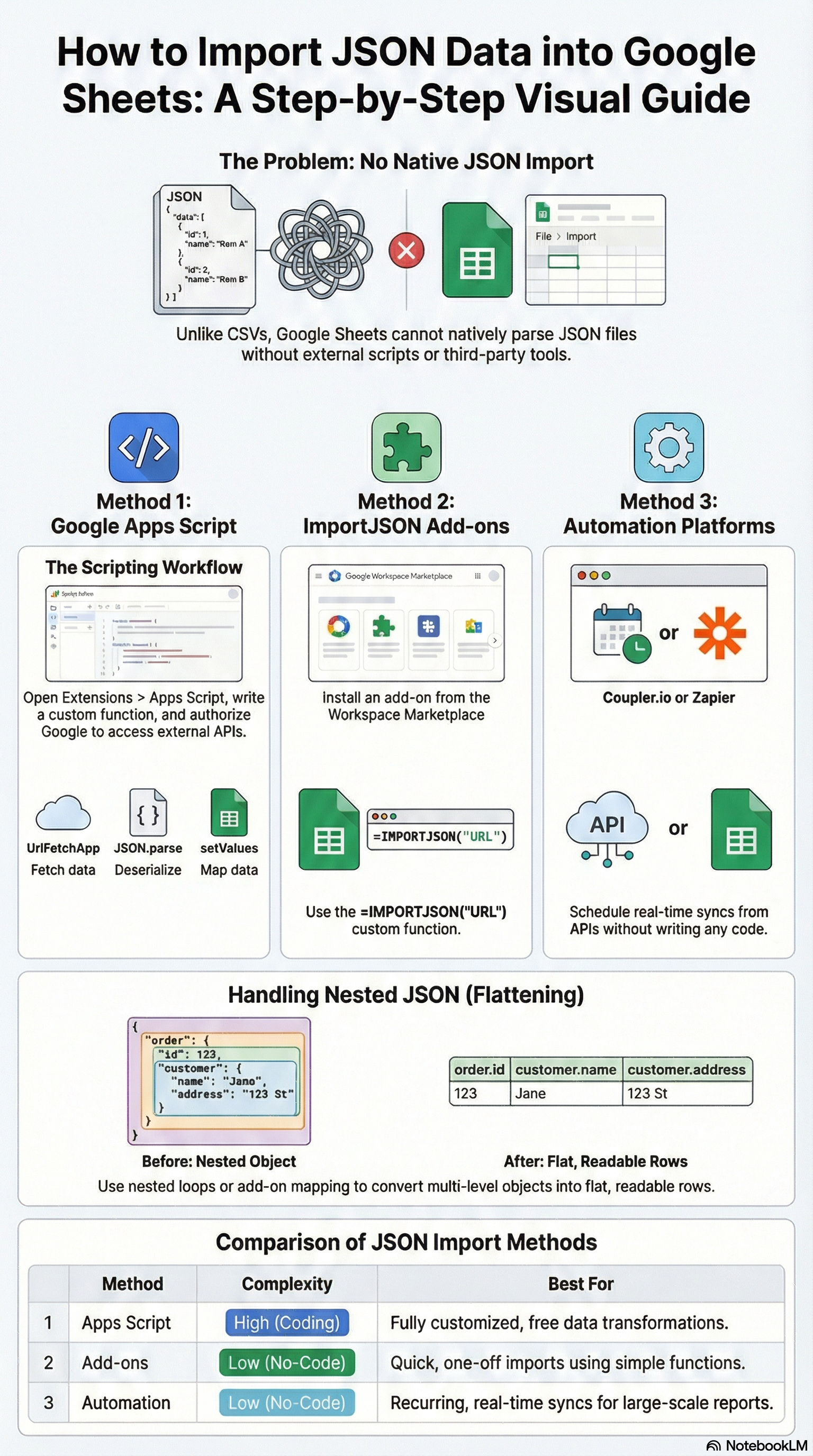
JSON is the standard format for API responses, webhook payloads, and data exports from modern tools. But when you try to import JSON to Google Sheets, you quickly discover there is no native IMPORTJSON function like there is for XML or HTML. The good news? There are several reliable workarounds — from a quick Apps Script to drag-and-drop tools — and this guide walks you through all three.
Whether you are pulling product data from a REST API, importing analytics payloads, or converting a JSON file from a colleague, you will find the right method below. We will start with the simplest option and work up to the most flexible.
Method 1: IMPORTDATA for Simple JSON URLs
If your JSON source happens to return data in a flat, CSV-like structure (or is actually a CSV endpoint disguised behind a .json extension), Google Sheets' built-in IMPORTDATA function might work:
=IMPORTDATA("https://example.com/api/data.csv")When this works:
- The URL returns comma-separated or tab-separated values, not true JSON objects.
- Some public datasets offer both JSON and CSV endpoints — always check for a CSV option first.
When this does not work (most cases):
- The endpoint returns actual JSON with curly braces, nested objects, or arrays.
IMPORTDATAcannot parse JSON syntax — it treats the entire response as plain text.
For genuine JSON data, you need one of the two methods below. If you frequently import structured data, our guide on how to import CSV to Google Sheets covers complementary techniques you can combine with JSON imports.
Method 2: Google Apps Script (The Most Flexible Option)
Google Apps Script lets you write a custom function that fetches JSON from any URL, parses it, and writes clean rows and columns directly into your sheet. This is the method most power users prefer because it gives you full control over data transformation.
Step 1: Open the Apps Script Editor
In your Google Sheet, go to Extensions > Apps Script. This opens a code editor tied to your spreadsheet.
Step 2: Paste the Import Function
Replace the default code with this script:
function importJSON(url, sheetName) {
  var response = UrlFetchApp.fetch(url);
  var json = JSON.parse(response.getContentText());

  // Handle both arrays and single objects
  var data = Array.isArray(json) ? json : [json];

  if (data.length === 0) return;

  // Extract headers from the first object
  var headers = Object.keys(data[0]);
  var rows = data.map(function(item) {
    return headers.map(function(header) {
      var value = item[header];
      // Convert objects/arrays to string
      if (typeof value === 'object' && value !== null) {
        return JSON.stringify(value);
      }
      return value !== undefined ? value : '';
    });
  });

  // Write to sheet
  var sheet = SpreadsheetApp.getActiveSpreadsheet()
    .getSheetByName(sheetName || 'Sheet1');
  sheet.clearContents();
  sheet.getRange(1, 1, 1, headers.length).setValues([headers]);
  sheet.getRange(2, 1, rows.length, headers.length).setValues(rows);
}
Step 3: Run the Function
Still in the Apps Script editor:
- Click the Run button (play icon).
- Authorize the script when prompted — Google will ask for permission to access external URLs and your spreadsheet.
- The function fetches the JSON, extracts headers from the first object's keys, and populates your sheet.
Step 4: Use It as a Custom Formula (Optional)
If you want a cell-based formula, add a wrapper function:
/**
 * Imports JSON from a URL and returns a 2D array.
 * @param {string} url The JSON endpoint URL.
 * @return The parsed JSON data as rows and columns.
 * @customfunction
 */
function IMPORTJSON(url) {
  var response = UrlFetchApp.fetch(url);
  var json = JSON.parse(response.getContentText());
  var data = Array.isArray(json) ? json : [json];

  if (data.length === 0) return [['No data']];

  var headers = Object.keys(data[0]);
  var result = [headers];

  data.forEach(function(item) {
    result.push(headers.map(function(h) {
      var v = item[h];
      return (typeof v === 'object' && v !== null)
        ? JSON.stringify(v) : (v !== undefined ? v : '');
    }));
  });

  return result;
}
Now you can type =IMPORTJSON("https://api.example.com/data") directly in a cell. The UrlFetchApp documentation covers advanced options like authentication headers and POST requests.
Pro tip: If your API requires an API key or Bearer token, modify the fetch call:
var options = {
  'method': 'get',
  'headers': {
    'Authorization': 'Bearer YOUR_API_KEY'
  }
};
var response = UrlFetchApp.fetch(url, options);
For filtering and transforming the imported data directly in Sheets, the QUERY function pairs well with JSON imports — you can query the imported table without touching the script.
Method 3: Third-Party Tools and Libraries
If you prefer not to write code, several tools can handle JSON imports for you.
ImportJSON Library (Free, Open Source)
The ImportJSON library by Brad Jasper is one of the most popular solutions. It adds an =ImportJSON() function to your sheet:
- Open Extensions > Apps Script.
- Create a new script file and paste the ImportJSON library code from GitHub.
- Save and return to your sheet.
- Use the formula:
=ImportJSON("https://api.example.com/data", "/items/name", "noHeaders")
The second parameter is a JSON path query (like /items/name) that lets you extract specific nested fields. The third parameter controls options such as noHeaders, noTruncate, and rawHeaders.
Coefficient
Coefficient is a Google Sheets add-on that connects to APIs, databases, and SaaS tools. It provides a visual interface to map JSON fields to columns — no coding needed. It also supports scheduled auto-refreshes, which is useful for live dashboards.
Coupler.io
Coupler.io lets you set up recurring JSON imports from any URL. You configure the source, map fields, and set a refresh schedule (hourly, daily). It handles pagination and nested data automatically.
Convert JSON to CSV First
Sometimes the simplest approach is converting your JSON file to CSV before importing. SmoothSheet's free JSON to CSV converter flattens nested objects automatically and processes everything in your browser — no data leaves your machine. Once you have the CSV, you can upload it directly to Google Sheets or use SmoothSheet to import large files without browser crashes.
Handling Nested JSON
Real-world JSON is rarely flat. API responses typically include nested objects and arrays. Here is an example:
{
  "users": [
    {
      "id": 1,
      "name": "Alice",
      "address": {
        "city": "New York",
        "zip": "10001"
      },
      "tags": ["admin", "editor"]
    }
  ]
}
This structure will not map cleanly to rows and columns without flattening. Here are your options:
Strategy 1: Dot Notation Flattening
Convert nested keys into dot-separated column headers. The example above becomes:
| id | name | address.city | address.zip | tags |
|---|---|---|---|---|
| 1 | Alice | New York | 10001 | admin, editor |
Here is a recursive flattening function you can add to your Apps Script:
function flattenObject(obj, prefix) {
  prefix = prefix || '';
  var result = {};
  for (var key in obj) {
    var fullKey = prefix ? prefix + '.' + key : key;
    if (typeof obj[key] === 'object' && obj[key] !== null
        && !Array.isArray(obj[key])) {
      var nested = flattenObject(obj[key], fullKey);
      for (var nk in nested) {
        result[nk] = nested[nk];
      }
    } else if (Array.isArray(obj[key])) {
      result[fullKey] = obj[key].join(', ');
    } else {
      result[fullKey] = obj[key];
    }
  }
  return result;
}
Strategy 2: JSON Path Queries
The ImportJSON library supports path-based extraction. Instead of flattening everything, you target exactly the fields you need:
=ImportJSON("https://api.example.com/users", "/users/name,/users/address/city", "noHeaders")Strategy 3: Pre-Process with a Converter
If you are working with a downloaded JSON file rather than a live API, converting it to CSV before importing is often the fastest path. The JSON to CSV tool from SmoothSheet handles nested objects by automatically creating dot-notation headers, and it runs entirely in your browser for full privacy.
Which Method Should You Use?
The right approach depends on your technical comfort and how frequently you need the data refreshed.
| Criteria | IMPORTDATA | Apps Script | ImportJSON Library | Third-Party Tools |
|---|---|---|---|---|
| Handles real JSON | No | Yes | Yes | Yes |
| Nested data support | No | Yes (custom code) | Yes (path queries) | Yes (auto-flatten) |
| Coding required | None | Moderate | Minimal (paste library) | None |
| API authentication | No | Yes (headers) | Limited | Yes (built-in) |
| Auto-refresh | Yes (cell recalc) | Yes (triggers) | Yes (cell recalc) | Yes (scheduled) |
| Cost | Free | Free | Free | Free tier / Paid plans |
| Best for | CSV-like endpoints | Full control, complex APIs | Quick JSON imports | No-code teams, dashboards |
Our recommendation: Start with the Apps Script custom function (Method 2) if you are comfortable with a bit of code — it is free, flexible, and handles authentication. If you need a no-code path, convert your JSON file to CSV with SmoothSheet's converter and then import it like any other spreadsheet file.
Frequently Asked Questions
Can Google Sheets import JSON natively?
No. Unlike IMPORTXML or IMPORTHTML, Google Sheets does not have a built-in function that parses JSON. You need to use Google Apps Script, the open-source ImportJSON library, or a third-party add-on to bring JSON data into your spreadsheet.
How do I automatically refresh JSON data in Google Sheets?
If you use the =IMPORTJSON() custom function, the data refreshes whenever the spreadsheet recalculates (roughly every hour for external data). For more control, create a time-driven trigger in Apps Script that runs your import function on a fixed schedule — for example, every 15 minutes or once a day.
What is the size limit for JSON imports into Google Sheets?
Google Sheets can hold up to 10 million cells per spreadsheet. The practical limit depends on how many columns your JSON produces — if each record has 20 fields, you can store around 500,000 records. For larger datasets, consider splitting the data or using CSV import methods with server-side processing tools like SmoothSheet that bypass browser memory limits.
How do I import a local JSON file (not a URL) into Google Sheets?
Google Apps Script cannot directly access files on your computer. Instead, upload the JSON file to Google Drive first, then read it with Apps Script using DriveApp.getFileById(). Alternatively, use a browser-based converter — paste or upload your JSON into the JSON to CSV tool, download the CSV, and open it in Sheets.
Conclusion
Importing JSON to Google Sheets is not a one-click operation, but it does not have to be complicated either. For most users, a simple Apps Script with UrlFetchApp and JSON.parse is the fastest way to pull live API data into a spreadsheet. If you prefer a formula-based approach, the ImportJSON library gives you cell-level control. And for teams that want zero code, third-party tools like Coefficient and Coupler.io handle the heavy lifting.
When you are dealing with large or deeply nested JSON files, converting to CSV first often saves time. SmoothSheet's JSON to CSV converter flattens nested structures automatically and runs entirely in your browser. And if the resulting CSV is too large for a normal Google Sheets upload, the SmoothSheet add-on handles server-side imports up to millions of rows — no browser crashes, no data loss.
Pick the method that fits your workflow, and start turning those JSON endpoints into clean, queryable spreadsheet data.