
Whether you're pulling data from a CRM export, a financial report, or an analytics dashboard, knowing how to import CSV to Google Sheets is one of the most essential spreadsheet skills you can have. CSV files are everywhere — they're the universal format for moving data between systems — and Google Sheets gives you several ways to bring them in.
The right method depends on your situation. Need a quick one-time import? Use the built-in File menu. Want your data to auto-update from a URL? There's a formula for that. Running recurring imports on a schedule? Apps Script has you covered. In this guide, I'll walk you through all four methods, help you pick the right one, and point you to solutions for common issues.
Key Takeaways:Google Sheets offers 4 CSV import methods — manual upload, IMPORTDATA formula, Apps Script, and drag-and-dropIMPORTDATA auto-refreshes hourly but is limited to 50,000 cells; Apps Script handles larger files with no cell capGoogle Sheets supports up to 10 million cells per spreadsheet, but performance drops above 100K rowsFor CSV files over 100MB, SmoothSheet processes imports server-side to avoid browser crashes
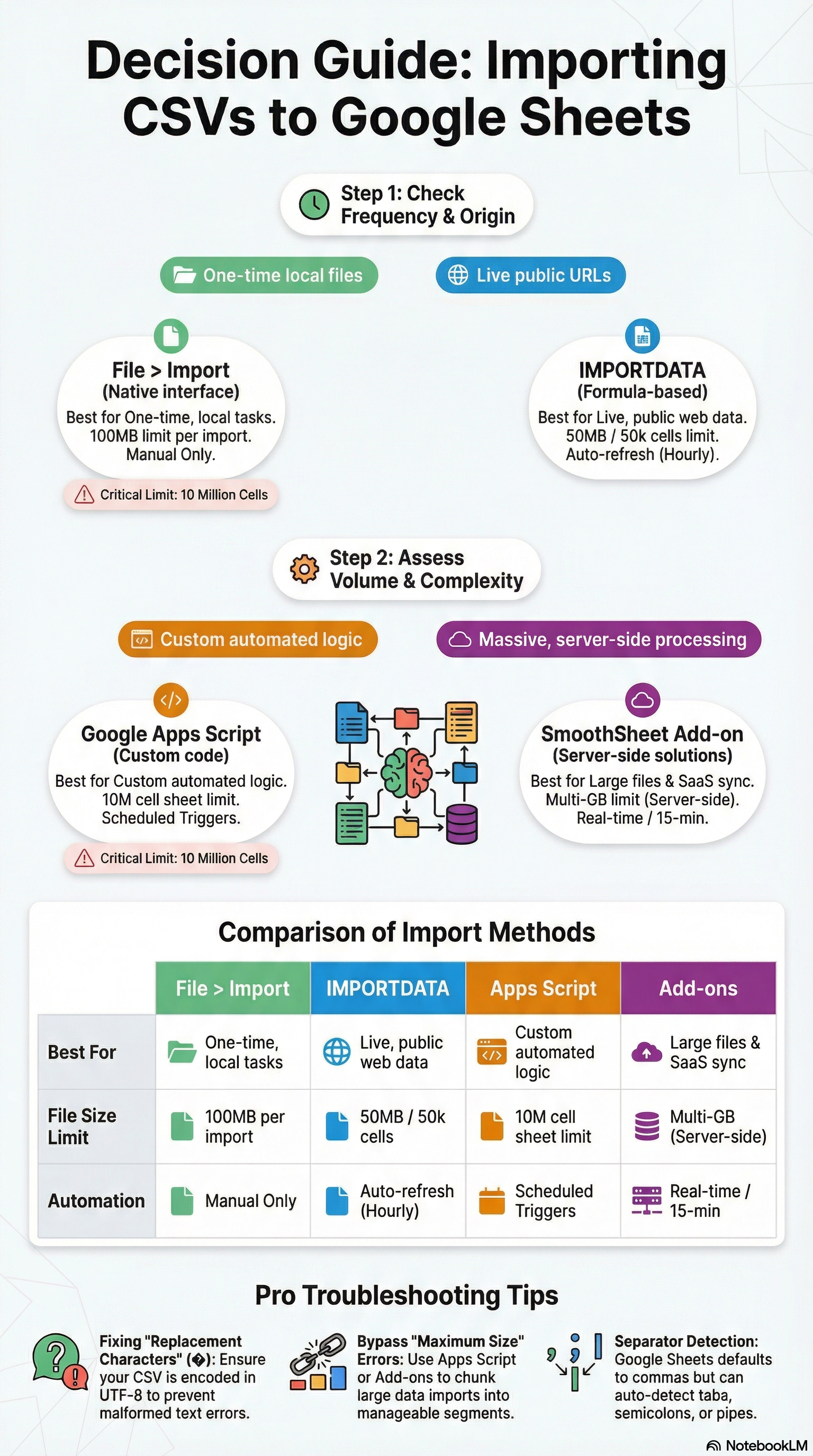
4 Ways to Import CSV Files to Google Sheets
Each method has its strengths. I'll cover them from simplest to most powerful, so you can jump to whichever fits your workflow.
Method 1: File > Import (Manual Upload)
This is the standard approach most people use, and it works great for one-off imports of local CSV files.
Steps:
- Open Google Sheets (or create a new spreadsheet at
sheets.new) - Go to File > Import
- Click the Upload tab, then drag your CSV file in or click Browse
- In the import dialog, configure your settings:
- Import location: Create new spreadsheet, insert new sheet(s), or replace current sheet
- Separator type: Auto-detect (usually works), or manually choose comma, tab, semicolon, or custom
- Convert text to numbers, dates, and formulas: Yes (default) or No — turn this off if you need to preserve leading zeros in ZIP codes or product IDs
- Click Import data
Limits: The file upload cap is 100MB, and your spreadsheet can hold up to 10 million cells total. If your file is larger or your sheet is nearing capacity, you'll need a different approach (more on that below).
Best for: One-time imports where you have the CSV file on your computer and don't need automation.
Method 2: IMPORTDATA Function (Auto-Updating from URL)
If your CSV is hosted at a public URL — say, a data feed, a government dataset, or a file on your company's CDN — the IMPORTDATA function lets you pull it directly into your spreadsheet with a single formula. Even better, it auto-refreshes approximately every hour, so your data stays current without manual work.
Basic syntax:
=IMPORTDATA("https://example.com/data.csv")The full syntax, per Google's documentation, is:
=IMPORTDATA(url, [delimiter], [locale])- url (required): The full URL to a publicly accessible CSV or TSV file, enclosed in quotes
- delimiter (optional): The separator character — useful when Google doesn't auto-detect correctly
- locale (optional): A language/region code (e.g.,
"en_US") that affects number and date parsing
Combining IMPORTDATA with QUERY:
Here's where it gets powerful. You can wrap IMPORTDATA in a QUERY function to filter or transform the data as it comes in:
=QUERY(IMPORTDATA("https://example.com/sales.csv"), "SELECT Col1, Col3, Col5 WHERE Col5 > 1000 ORDER BY Col5 DESC")Note that QUERY uses Col1, Col2, etc. (not column letters like A, B) when the data source is a function rather than a range. This combo is excellent for building dashboards that pull live data from external sources.
IMPORTDATA limits and gotchas:
- 50,000 cells maximum — this is a hard cap. If your CSV has 10 columns and 6,000 rows, you'll hit it
- ~2MB file size — larger files trigger a "Resource at URL contents exceeded maximum size" error
- URL must be public — files behind authentication or on a private network won't work (you'll see "Could not fetch URL")
- No custom refresh rate — Google controls the ~1 hour refresh cycle; you can force a refresh by re-entering the formula
- #N/A error usually means a typo in the URL or the file has been removed
Best for: Live dashboards, regularly updated public data feeds, and situations where you want data to stay in sync without manual intervention — as long as your file is under 50K cells.
Method 3: Google Apps Script (Automated Imports)
When you need more control — larger files, scheduled imports, custom parsing, or pulling CSVs from Google Drive — Google Apps Script is the way to go. It doesn't have the 50,000-cell limit of IMPORTDATA, and you can set it to run on a schedule.
Here's a working script that imports a CSV from Google Drive:
function importCSVFromDrive() {
  // Find the CSV file by name in Google Drive
  var files = DriveApp.getFilesByName("monthly-report.csv");

  if (files.hasNext()) {
    var file = files.next();
    var csvData = file.getBlob().getDataAsString();
    var rows = Utilities.parseCsv(csvData);

    // Open the target spreadsheet and sheet
    var sheet = SpreadsheetApp.getActiveSpreadsheet()
                  .getSheetByName("ImportedData");

    // Clear old data and write new data
    sheet.clear();
    sheet.getRange(1, 1, rows.length, rows[0].length)
         .setValues(rows);

    Logger.log("Imported " + rows.length + " rows successfully.");
  } else {
    Logger.log("CSV file not found in Drive.");
  }
}
To import from a URL instead:
function importCSVFromURL() {
  var url = "https://example.com/data.csv";
  var response = UrlFetchApp.fetch(url);
  var csvData = response.getContentText();
  var rows = Utilities.parseCsv(csvData);

  var sheet = SpreadsheetApp.getActiveSpreadsheet()
                .getSheetByName("ImportedData");
  sheet.clear();
  sheet.getRange(1, 1, rows.length, rows[0].length)
       .setValues(rows);
}
Setting up an automatic schedule:
- In the Apps Script editor, click the clock icon (Triggers) in the left sidebar
- Click + Add Trigger
- Choose your function, set the event source to Time-driven
- Pick your frequency — every hour, every day, every week, etc.
- Click Save and authorize the script
Limits: Apps Script has a 6-minute execution time limit per run and a daily quota (varies by account type). For most CSV imports, this is more than enough. If you're importing millions of rows, however, you may need to batch the operation across multiple runs — or use a tool like SmoothSheet that handles server-side processing.
Best for: Recurring imports, files on Google Drive, imports that need custom parsing or data transformation, and situations where IMPORTDATA's 50K-cell limit is too restrictive.
Method 4: Drag and Drop (Quick Import)
The fastest method — just drag a CSV file from your desktop directly onto the Google Sheets interface (or onto Google Drive).
Steps:
- Open Google Drive or an existing Google Sheet
- Drag your CSV file from your file explorer and drop it onto the browser window
- If dropped onto Drive, double-click the uploaded file to open it in Sheets
- If dropped onto an open Sheet, Google will open it in a new spreadsheet
Limitations: You get minimal control over import settings. Google auto-detects the delimiter and applies default parsing. If your file uses semicolons as delimiters (common in European exports) or has leading zeros you need to preserve, the manual File > Import method gives you more control.
Best for: Quick, no-fuss imports when you just need to view or work with a CSV file and don't need special parsing options.
Which Method Should You Use?
Here's a side-by-side comparison to help you decide:
| Criteria | File > Import | IMPORTDATA | Apps Script | Drag & Drop |
|---|---|---|---|---|
| Max file size | 100MB | ~2MB | Varies (6-min limit) | 100MB |
| Cell limit | 10M (spreadsheet) | 50,000 | 10M (spreadsheet) | 10M (spreadsheet) |
| Auto-refresh | No | ~Every hour | Custom schedule | No |
| Data source | Local file | Public URL | URL, Drive, email | Local file |
| Import options | Full control | Limited | Full control | Minimal |
| Skill level | Beginner | Intermediate | Advanced | Beginner |
| Best for | One-time imports | Live dashboards | Recurring workflows | Quick file viewing |
My recommendation: Start with File > Import for most situations. Move to IMPORTDATA when you need auto-updating data from a URL. Graduate to Apps Script when you need full automation or your data exceeds IMPORTDATA's limits. And if your CSV files are large enough to crash your browser, SmoothSheet handles the heavy lifting with server-side processing — no browser timeouts, no memory errors.
Common Import Issues and Quick Fixes
CSV imports don't always go smoothly. Here are the most common problems and where to find detailed solutions:
| Issue | Quick Fix | Detailed Guide |
|---|---|---|
| Special characters look garbled (mojibake) | Re-save file as UTF-8, or use the CSV Encoding Fixer | CSV Import Tips |
| Wrong delimiter detected | Use File > Import and manually select the separator type | CSV Import Tips |
| Browser crashes on large files | Split the file first or use SmoothSheet for server-side import | Upload Large CSV Guide |
| "File Too Large" error | Check your spreadsheet's cell count with the Limits Calculator | Fix File Too Large Error |
| Leading zeros stripped (ZIP codes, IDs) | Turn off "Convert text to numbers" in import dialog, or pre-format as text | CSV Import Tips |
| File exceeds 10M cell limit | Use CSV Splitter to break the file into smaller chunks | Google Sheets File Size Limit |
If you're dealing with an Excel file rather than a CSV, the process is slightly different — check out our guide on how to import Excel into Google Sheets.
Frequently Asked Questions
Can I import a CSV to a specific sheet or cell range?
Yes. When using File > Import, select "Replace current sheet" or "Insert new sheet(s)" to control where the data lands. For even more precision, use Apps Script — you can specify the exact sheet name and starting cell in your code (e.g., sheet.getRange(5, 1, rows.length, rows[0].length) to start at row 5).
How do I schedule automatic CSV imports in Google Sheets?
Use Google Apps Script with a time-driven trigger. Write a function that fetches and parses your CSV (from a URL or Google Drive), then set up a trigger to run it hourly, daily, or weekly. The IMPORTDATA function also auto-refreshes from URLs, but you can't control the timing — it updates roughly every hour.
Why does IMPORTDATA show a #N/A or "Could not fetch URL" error?
The most common causes are: (1) the URL is mistyped or the file has been moved/deleted, (2) the file requires authentication or is behind a firewall — IMPORTDATA only works with publicly accessible URLs, or (3) the file exceeds the ~2MB size limit. Double-check the URL works when opened directly in your browser.
What's the maximum CSV file size Google Sheets can handle?
The upload limit is 100MB per file, and each spreadsheet can hold up to 10 million cells. However, performance starts degrading well before that — most users notice slowdowns above 100,000 rows. For very large CSV files, consider using SmoothSheet to handle the import server-side, avoiding browser memory limits entirely.
Can I import multiple CSV files into one Google Sheet at once?
Not through the built-in import dialog — you'd need to import each file separately into different sheets. However, Apps Script can automate this: loop through multiple files in a Drive folder and import each one to its own sheet tab. If you need to merge multiple CSVs into a single dataset first, try the free CSV Merger tool before importing.
Conclusion
Importing a CSV to Google Sheets is straightforward once you know which method fits your workflow. For quick, one-time uploads, File > Import or drag-and-drop does the job. For live data feeds, IMPORTDATA keeps your sheets in sync automatically. And for full automation with no cell-count limits, Apps Script gives you programmatic control over the entire process.
When file size becomes a bottleneck — browser crashes, timeout errors, or bumping against Google Sheets' 10-million-cell limit — SmoothSheet handles the heavy lifting. It processes large CSV and Excel imports server-side, so your browser doesn't have to. At $9/month, it's a simple fix for a frustrating problem.
Pick the method that matches your needs, and start importing.