
You open a CSV in Google Sheets and instead of customer names, you see ü, é, or € scattered through your data. Those garbled characters — known as mojibake — are one of the most common csv encoding issues Google Sheets users face. The good news: every encoding problem has a fix, and most take less than two minutes.
This guide walks you through exactly why encoding breaks happen, four proven methods to fix them, and how to prevent garbled characters from appearing in the first place.
Key Takeaways:Garbled characters happen when your CSV's encoding (e.g., Latin-1) doesn't match what Google Sheets expects (UTF-8).Over 98% of the web uses UTF-8 — saving your CSV as UTF-8 fixes most encoding issues instantly.Adding a UTF-8 BOM (byte order mark) solves compatibility problems when files move between Excel and Sheets.SmoothSheet's free CSV Encoding Fixer auto-detects and repairs encoding in your browser — no uploads required.
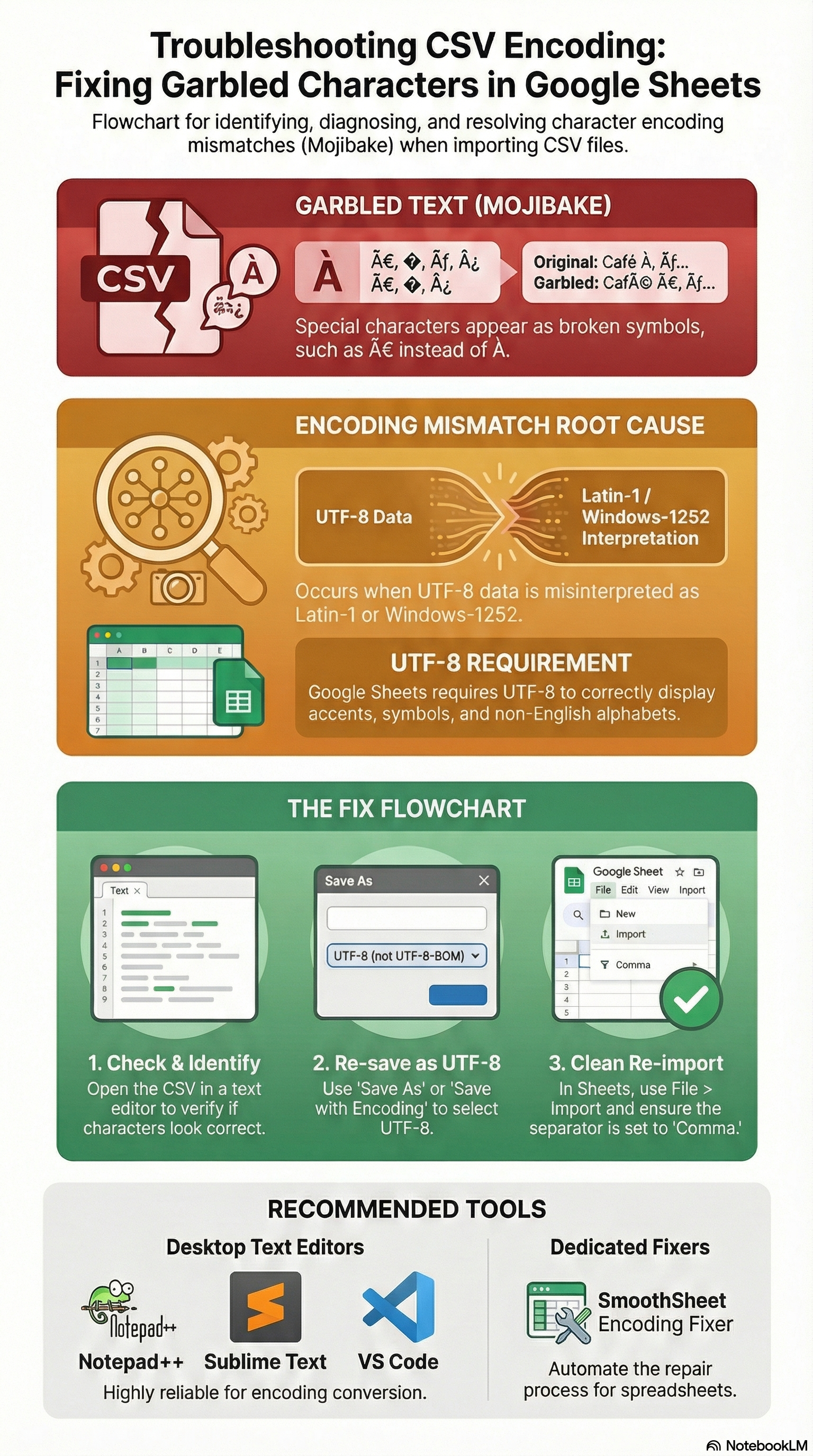
Why Characters Look Garbled After CSV Import
Every text file stores characters as numbers. An encoding is the lookup table that maps those numbers back to readable characters. When the encoding used to save a file doesn't match the encoding used to open it, characters get misinterpreted — and you see mojibake instead of real text.
Here's a quick comparison of the three encodings you'll encounter most often:
| Encoding | Characters Supported | Typical Source |
|---|---|---|
| UTF-8 | All Unicode (every language) | Modern apps, web exports, Google Sheets |
| ISO-8859-1 (Latin-1) | 256 Western European characters | Legacy databases, older Linux systems |
| Windows-1252 | 256 characters (Latin-1 + extras like curly quotes) | Excel on Windows, older ERP exports |
The most common scenario: someone exports a CSV from a Windows application that uses Windows-1252 encoding, then opens it in Google Sheets — which expects UTF-8. The multi-byte UTF-8 sequences get misread as single-byte Latin characters, and you end up with ü instead of ü or ç instead of ç.
This is purely a metadata problem — your actual data is intact underneath. You just need to tell the software which encoding to use when reading the bytes.
How to Fix Encoding Issues (Step-by-Step)
Below are four methods, ordered from manual to automated. Pick whichever fits your workflow.
Fix 1 — Re-save as UTF-8 in a Text Editor
This is the most reliable manual fix when you have access to the original CSV file.
- Open the CSV file in a text editor like Notepad++ (Windows), Sublime Text, or TextEdit (Mac — switch to plain text mode first).
- In Notepad++, go to Encoding in the menu bar and check which encoding is currently active.
- Select Encoding → Convert to UTF-8.
- Save the file (Ctrl+S).
- Re-import the file into Google Sheets.
In Sublime Text, use File → Save with Encoding → UTF-8. On Mac's TextEdit, open preferences, select Plain Text as the default format, then re-save the file.
This method works well for one-off files. If you're dealing with CSVs regularly, the automated approaches below save more time.
Fix 2 — Add a UTF-8 BOM for Excel Compatibility
A BOM (Byte Order Mark) is a special invisible character (EF BB BF) placed at the very beginning of a file. It tells any software opening the file: "this is UTF-8." Without it, Excel often guesses wrong and defaults to Windows-1252.
This fix is especially important when CSV files bounce between Excel and Google Sheets:
- Open the CSV in Notepad++.
- Go to Encoding → Convert to UTF-8 BOM.
- Save and re-import into Google Sheets.
Google Sheets handles BOM correctly — it reads the marker, applies UTF-8, and strips the BOM from the visible data. If you import CSV files to Google Sheets regularly from Excel users, always ask them to save with UTF-8 BOM.
Fix 3 — Use Google Sheets File Import Settings
If you're importing directly through the Google Sheets interface, you can sometimes override the encoding detection:
- Open Google Sheets and go to File → Import.
- Upload your CSV file.
- In the import dialog, look for the "Separator type" dropdown — Google Sheets will auto-detect the encoding in most cases.
- If characters are still garbled, try the IMPORTDATA function instead:
=IMPORTDATA("url-to-your-csv"). When fetching from a URL, Google Sheets is better at detecting the encoding from HTTP headers.
Note: Google Sheets does not expose an explicit encoding selector in its import UI. If auto-detection fails, re-saving the file as UTF-8 (Fix 1 or Fix 2) is the more reliable path.
Fix 4 — Use SmoothSheet's Free Encoding Fixer Tool
If you don't want to deal with text editors or manual encoding detection, SmoothSheet's CSV Encoding Fixer handles everything automatically:
- Open the CSV Encoding Fixer in your browser.
- Drop your CSV file onto the page.
- The tool auto-detects the current encoding and shows you a preview of the fixed characters.
- Choose whether to add a UTF-8 BOM (recommended if the file will be opened in Excel).
- Download the fixed file and import it into Google Sheets.
The tool processes everything client-side — your data never leaves your browser. This makes it safe for sensitive business data, financial reports, or any file with personally identifiable information. You can also run the file through the CSV Validator afterward to check for any remaining structural issues.
Common Encoding Scenarios
Different character sets break in different ways. Here's what to look for based on the language or symbols in your data.
Turkish Characters (İ, Ş, Ğ, ç)
Turkish is one of the most affected languages because characters like İ (capital I with dot), Ş (S-cedilla), and Ğ (G-breve) fall outside the basic ASCII range. Common mojibake patterns:
| You See | Should Be | Cause |
|---|---|---|
Ä° | İ | UTF-8 read as Latin-1 |
ç | ç | UTF-8 read as Latin-1 |
ÅŸ | ş | UTF-8 read as Latin-1 |
ü | ü | UTF-8 read as Latin-1 |
Turkish CSV exports from banking systems and government portals frequently use ISO-8859-9 (Latin-5) encoding. Re-saving as UTF-8 fixes all of these.
German / French Characters (ä, ö, ü, é, è)
Western European characters are covered by both Latin-1 and UTF-8, but the byte representations differ. If you see ä instead of ä or é instead of é, the file was saved as UTF-8 but opened with Latin-1 interpretation.
This is extremely common in CSV exports from SAP, Oracle, and other enterprise systems used across Europe. The fix is the same: re-save as UTF-8, or run the file through SmoothSheet's Encoding Fixer to handle the conversion automatically.
Asian Characters (CJK — Chinese, Japanese, Korean)
CJK characters use multi-byte encodings like Shift_JIS (Japanese), GB2312 / GBK (Chinese), or EUC-KR (Korean). When these are misinterpreted, you'll often see entire blocks of replacement characters (??? or �) rather than the partial mojibake you get with European languages.
For CJK files, simply re-saving as UTF-8 might not work in a basic text editor because the editor may not recognize the original encoding. Use a tool with auto-detection — Notepad++ recognizes Shift_JIS and GB2312 reliably, or use SmoothSheet's Encoding Fixer which handles CJK detection automatically.
Currency Symbols (€, £, ¥)
The Euro sign (€) is the most problematic currency symbol. In Windows-1252, it's byte 0x80. In UTF-8, it's three bytes (E2 82 AC). In ISO-8859-1, byte 0x80 is a control character — so the € simply vanishes or becomes €.
If you're working with financial data and see broken currency symbols, that's a clear sign your CSV was exported in Windows-1252. Convert to UTF-8 and the symbols will display correctly in Google Sheets.
How to Prevent Encoding Issues
Prevention is always easier than fixing. Follow these best practices to avoid garbled characters from the start:
- Always export as UTF-8. When exporting from databases, CRMs, or ERP systems, look for an encoding option and select UTF-8. Most modern tools offer this.
- Add BOM for Excel workflows. If your CSV will be opened in Excel before reaching Google Sheets, save with UTF-8 BOM. This prevents Excel from defaulting to Windows-1252.
- Standardize across your team. Set a team-wide rule: all CSVs must be UTF-8 encoded. Document this in your data export guidelines.
- Validate before importing. Run files through the CSV Encoding Fixer as a pre-import step. It takes seconds and catches issues before they reach your spreadsheet.
- Use server-side import for large files. When you're importing CSVs into Google Sheets, browser-based imports can sometimes mishandle encoding on large files. SmoothSheet processes imports server-side, preserving the original encoding throughout the upload.
For a deeper look at character encoding standards and how they work under the hood, the W3C's guide to character encoding is the definitive reference.
FAQ
What encoding does Google Sheets use by default?
Google Sheets uses UTF-8 as its default encoding for both import and export. When you download a Google Sheet as CSV, it will always be UTF-8 encoded. The problems arise when you import files that were saved in other encodings like Latin-1 or Windows-1252.
How do I know what encoding my CSV file uses?
Open the file in Notepad++ and check the bottom-right corner of the status bar — it displays the current encoding. On Mac, you can use the Terminal command file -I yourfile.csv to detect encoding. Alternatively, drop the file into SmoothSheet's Encoding Fixer, which auto-detects the encoding and shows you the result.
Will converting to UTF-8 change or damage my data?
No. Converting encoding is a lossless operation — it changes how bytes are interpreted, not the data itself. As long as the source encoding is correctly identified, every character maps to its UTF-8 equivalent without any data loss. The only risk is if the wrong source encoding is selected, which can deepen the corruption. Auto-detection tools minimize this risk.
Why does Excel keep opening my UTF-8 CSV with wrong characters?
Excel on Windows defaults to the system's local encoding (usually Windows-1252) when opening CSV files by double-clicking. To fix this, either add a UTF-8 BOM to the file (which signals Excel to use UTF-8), or use Excel's Data → From Text/CSV import wizard where you can explicitly select 65001: Unicode (UTF-8) as the file origin. If you're moving files between Excel and Google Sheets, BOM is the most reliable approach.
Conclusion
CSV encoding issues in Google Sheets almost always come down to one thing: a mismatch between the encoding your file was saved in and the encoding Sheets expects (UTF-8). Once you understand that core concept, the fix is straightforward — re-save as UTF-8, add a BOM when Excel is involved, or let an automated tool handle the detection and conversion.
For a quick, no-install solution, SmoothSheet's CSV Encoding Fixer detects and repairs encoding issues right in your browser. And if you're importing large CSV files into Google Sheets on a regular basis, SmoothSheet's Google Sheets add-on ($9/month) handles encoding automatically during server-side imports — so garbled characters never reach your spreadsheet in the first place.